

The essentials · 30-second read
A success message is not proof of delivery: follow one test lead through each stage and fix the first one that breaks.
- Treat submission, storage, notification and CRM routing as four separate stages, each with its own evidence.
- Test on the published URL with a unique reference, never only in the Designer preview.
- A stored submission with no email points to notification settings or email filtering, not to the form.
- A CRM failure is a workflow problem: check run history, field mappings and deduplication.
- Change one setting at a time, then retest the full route on mobile, another browser and each consent state.
Summarize this article with AI
A Webflow contact form usually stops sending leads at one of four stages: the browser never submits, the submission is not stored, the notification email is not delivered, or the CRM never receives the record. Send one identifiable test on the published site, follow it through those four stages, and fix the first one where the evidence disappears.
A success message on screen proves only that the first stage looked fine to the visitor. The submission can be stored in Webflow while its notification is blocked, or an integration can accept the request without creating a CRM record. Those are different failures with different fixes, so this guide treats them separately before touching the form's design.
Find the exact point where the lead disappears
Treat lead capture as a chain of separate events, not a single click on the submit button. Each stage leaves its own evidence, in a different place.
| Stage | What should happen | Where to look for evidence | Typical symptom when it fails |
|---|---|---|---|
| 1. Submission | The browser validates the fields and sends the request | The live page, the browser's developer tools | Error message, or a button that does nothing |
| 2. Storage | The receiving platform records the submission | Webflow's form submissions, or the external form provider | No record for your test reference |
| 3. Notification | An email or internal alert reaches the right team | Inboxes, spam and quarantine, mail logs | Record exists, but nobody was told |
| 4. Routing | The lead reaches the CRM with an owner and a workflow | Automation run history, CRM contacts | Email arrived, but no CRM record or owner |
Give your test a unique reference, such as FORM-TEST-1027-A, in the message field. Record the submission time, the page URL and the expected recipient. Use an email address you control rather than invented customer details.
Stop at the first stage where evidence is missing. This avoids changing notification settings when the browser never sent anything. The same sequence fits into a broader Webflow landing page QA process before paid traffic goes live.
Why your Webflow contact form will not submit
If nothing is recorded at the intended destination, investigate the published page before the inbox.
Test the live page and confirm its destination
Run the test on the exact domain and URL your visitors use. Designer preview is useful for layout checks, but it does not replace a live submission test. Confirm that the relevant changes were published to that domain.
Then establish how the form is processed. The answer decides where you look next.
| Setup | Where submissions should appear | What an empty Webflow submissions list means |
|---|---|---|
| Native Webflow form | Webflow's form submissions for the site | A real capture problem worth investigating |
| Custom action URL | The external endpoint that receives the data | Nothing on its own: check the endpoint's logs instead |
| Embedded provider (Tally, Typeform, HubSpot…) | The provider's own dashboard | Expected: the provider stores the data |
Check validation and the submit control
A required field can block submission even when its error is hard to see. Check:
- email formatting and required checkboxes;
- required fields hidden by conditional logic or responsive styles;
- whether the button is a real submit control inside the intended form;
- nested forms, duplicated element IDs and labels attached to the wrong input, which often appear after copying components or adding custom code.
Error messages must be visible and tied to the right field. WCAG success criterion 3.3.1 requires that an input error is identified and described to the user in text, and the W3C forms tutorial explains how to validate input and report errors in a way every visitor can follow. Correct autocomplete attributes also help browsers fill the right values in the right fields.
Inspect scripts and the network request
Custom JavaScript can intercept submission, reject a value or fail before the request leaves the browser. CAPTCHA configuration and third-party scripts can interrupt the process too.
Ask a developer to watch the browser's Console and Network panels during a test. Chrome's documentation shows how to inspect network activity and read the status of each request. Capture the request status and the error message without sharing personal data. Do not disable production spam protection as a permanent workaround, and do not assume every failed request is a Webflow outage.
Check hosting, plan allowances and service status
Whether submissions are accepted depends on the actual hosting and processing setup.
For native handling, check the site's current plan and its form allowances in the account dashboard, and confirm that the site has the hosting configuration its submission method requires. Do not assume that an exported website keeps Webflow-hosted form processing.
Use the current Webflow pricing information and your account details rather than the submission count quoted in an old tutorial. Plans and legacy entitlements can differ. Where a limit applies, establish whether it resets periodically or is a total allowance, then check the documented behavior when it is reached. Do not assume that only notification emails stop.
If several forms that used to work fail at the same time, check Webflow's service status before rebuilding them. Record the affected URLs and timestamps. A confirmed incident calls for monitoring and a tested temporary contact route, not unrelated design changes.
If submissions are stored but notification emails are missing
A stored record means capture worked for that test. Now investigate delivery.
- Settings: open the notification settings for the affected form and confirm that notifications are enabled. Do not assume one recipient list applies to every form on the site.
- Recipients: check each address character by character, including shared inbox aliases, and remove obsolete ones.
- Filtering: search spam, quarantine and mailbox rules, and ask your email administrator to trace the message if the mail system allows it.
- Comparison: add a second authorized recipient to tell a mailbox problem from a configuration problem.
If an external integration sends the email, inspect that service's delivery logs and sender configuration too. Use a sender identity the service supports and put the visitor's address in Reply-To, rather than sending as the visitor. Google's email sender guidelines require every sender to Gmail accounts to authenticate the sending domain with SPF or DKIM, so a misconfigured custom sender is a common reason for filtering. The Webflow Help Center is the reference for the current native notification controls.
A form should never rely on one employee's inbox as its only record of incoming leads.
If the lead never reaches your CRM
CRM delivery is a separate workflow, even when it starts immediately after submission.
| Check | What can go wrong |
|---|---|
| Did the automation run for your test reference? | Workflow paused, account disconnected, trigger still pointing at an old form |
| Did the run succeed? | Missing required CRM property, invalid value, expired credentials, rate limit |
| Was a contact created or updated? | Deduplication updated an existing record instead of creating a new one |
| Is the lead actionable? | No owner, wrong pipeline, no follow-up task |
Renaming fields or replacing the form during a redesign often breaks mappings that used to work. A successful submission does not prove that sales received an actionable CRM record. Define what happens when routing fails: an alert, and an authorized way to replay the submission without creating duplicates.
If an external form is already part of your stack, the Tally and Webflow integration guide covers that setup. Switching providers without identifying the failed stage usually moves the same problem somewhere else.
Test mobile behavior and browser differences
A desktop test can miss problems that affect visitors on the devices they actually use.
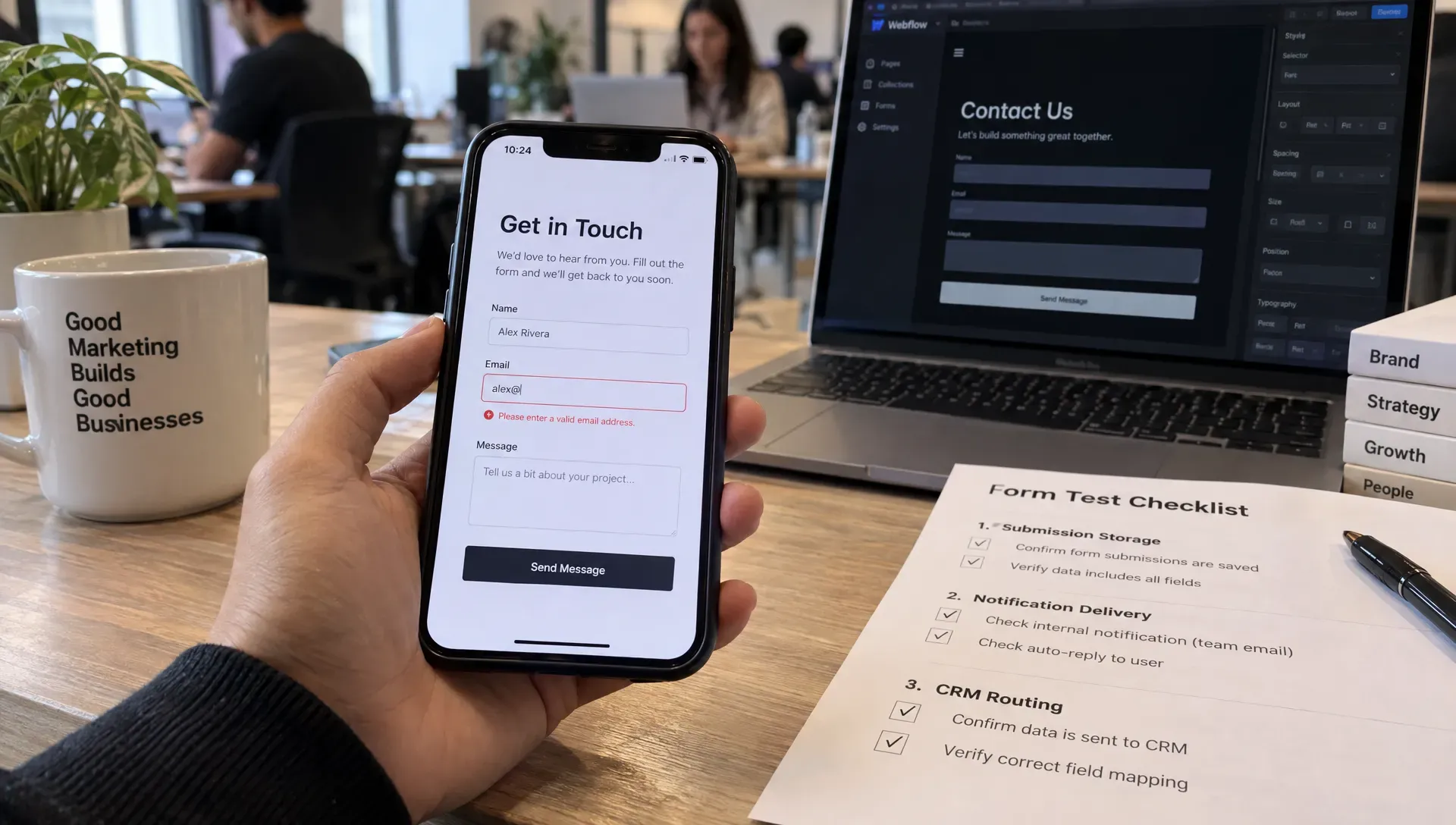
- Real phone: check that the keyboard does not hide the submit button, that error text stays visible and that required controls can be selected.
- Long messages and autofill: they should not break the layout or put values in the wrong fields.
- Another browser and a private window: if the issue appears in one environment only, compare extensions, privacy settings and blocked scripts.
- Consent states: where a consent manager is installed, test both accepted and declined states so optional tracking never becomes a condition for sending an inquiry.
- Slow connections: the button should show that sending is in progress and discourage duplicate sends, and entered data should survive a recoverable error.
After sending, the page should confirm the result clearly. The W3C forms tutorial on user notifications covers both success and error messages. A structured responsive Webflow QA process helps separate interaction failures from purely visual defects.
Check spam protection without weakening privacy
Security controls should block abuse without silently discarding legitimate inquiries.
Review the spam or filtered-submission areas available in your setup before concluding that records disappeared. If legitimate tests are flagged, look at the configured protection and the reason for the rejection. Check that any required CAPTCHA element and its configuration survived component or layout changes.
Ask only for the information needed to handle the inquiry. Never ask visitors for passwords, card details or sensitive documents through a general contact field. Restrict access to stored submissions and connected tools, and set a retention period suited to the purpose.
Privacy rules depend on your audience and jurisdiction. Explain how inquiry data will be used and keep optional marketing consent separate where required: answering a contact request and sending promotional emails are different purposes. During troubleshooting, check that screenshots, automation logs and support tickets do not expose submitted data unnecessarily.
Avoid fixes that hide the underlying problem
Changing tools or styling too early makes the failure harder to isolate.
| Tempting fix | Why it misleads | Do this instead |
|---|---|---|
| Rebuilding the form | A missing email can look like a broken form even when every submission is stored | Check the receiving system first |
| Changing several settings at once | It removes the evidence needed to find the cause | Change one variable, then retest |
| Trusting the thank-you page | A redirect does not confirm that the CRM accepted the data | Verify the final destination separately |
| Calling low volume a bug | Few submissions can be a conversion problem, not a technical one | Review fields, messaging and the contact page |
A form can work technically and still discourage inquiries. Too many qualifying questions or an unclear response time call for conversion work, not email troubleshooting. These landing page structure and conversion mistakes cover that side.
Use this checklist before restoring traffic
Retest the full journey after each fix, with a fresh reference so old records cannot be mistaken for new results.
- Confirm the live destination: open the exact production URL used by campaigns, navigation and contact links, and confirm the latest changes are published.
- Verify validation: submit empty required fields and an invalid email address. Errors should be understandable, visible and attached to the right inputs.
- Send a valid submission: use an address you control and a unique reference. Record the time and the expected receiving system.
- Find the stored record: confirm the values arrived intact in Webflow or the external provider, including fields needed for routing.
- Check notification delivery: the right team receives the message and can reply to the visitor's address. Check quarantine if it fails.
- Verify CRM handling: field mappings, duplicate behavior, owner and any follow-up task or alert.
- Repeat across environments: a real phone, another browser and the relevant consent states, including error and recovery behavior.
- Record the outcome: save the reference, date, result and owner where the team will find them after the next website change.
The form is ready for traffic when the complete route works, not when the button responds. If a critical stage still fails, keep the issue open and offer a tested alternative contact method.
Assign ownership and monitor the full lead route
A successful test is evidence, not monitoring.
Name one accountable owner for the form and its connected workflow. That person does not need to implement every fix, but should know who manages Webflow, email delivery and the CRM. Document recipient changes and integration dependencies so a departure does not silently break the process.
Retest after any change to form fields, custom scripts, consent tools or CRM properties. Compare submission records with routed leads using consistent definitions, allowing for spam, tests and duplicates: page-view analytics alone cannot show whether an inquiry reached sales. Set a review rhythm that matches the value and volume of your inquiries, with a controlled end-to-end test and a look at failed automation runs. This handoff is part of Webflow design work beyond visual styling, especially when a marketing site depends on several connected services.
How BeBranded approaches lead forms
BeBranded is an agency that starts with consulting, then builds: custom Next.js and Payload sites, Webflow when it is the right fit, AI, apps and automation. On a lead form, we start from the route rather than the design: where the data is stored, who is notified, which CRM fields are mapped, and what happens when a step fails. We define an acceptance test with your team, the same traceable submission described above, before any rebuild is discussed. When consent is involved, our own product FlowConsent handles the banner and consent records. If your forms still lose leads between systems, see our CRM and tool integration work or contact us to review the failing route.
Sources
- 1. W3C WAI: Understanding WCAG 3.3.1 Error Identification · w3.org/WAI/WCAG22/Understanding/error-identification.html
- 2. W3C WAI Forms Tutorial: Validating Input · w3.org/WAI/tutorials/forms/validation/
- 3. W3C WAI Forms Tutorial: User Notification · w3.org/WAI/tutorials/forms/notifications/
- 4. MDN: autocomplete HTML attribute · developer.mozilla.org/en-US/docs/Web/HTML/Reference/Attributes/autocomplete
- 5. Chrome DevTools: Inspect network activity · developer.chrome.com/docs/devtools/network
- 6. Google: Email sender guidelines · support.google.com/a/answer/81126
- 7. Webflow pricing · webflow.com/pricing
- 8. Webflow status · status.webflow.com/