
A missing CMS page is fixed by finding the first check it fails, not by changing every SEO setting at once.
- Diagnose in order: publication, discovery, crawl access, canonical selection, content.
- Use the Search Console status to pick the next check: "Discovered" and "Crawled, currently not indexed" call for different fixes.
- robots.txt blocks crawling, not indexing, and hides any noindex directive from Google.
- Redirects and rel="canonical" are strong signals; sitemap inclusion is a weak one.
- Validate on the live URL, test several items for template issues, and expect no guarantee of indexing.
Summarize this article with AI
To fix SEO indexing issues on Webflow CMS pages, find the first stage where the URL fails (publication, discovery, crawl access, canonical selection or content) with Search Console's URL Inspection tool, then correct that cause on the published item or template. Most cases come from an unintended noindex, a blocked path, a canonical pointing elsewhere or a thin template, not from the sitemap.
The order matters. Fixing a sitemap will not override a noindex tag, and requesting indexing will not resolve an incorrect canonical. A page can also be indexed without ranking for the searches you expect.
This guide focuses on diagnosing missing Collection pages, correcting the underlying settings and validating the result. For the wider configuration of your site, our complete Webflow SEO guide covers the broader setup.
Diagnose the indexing failure before changing settings
Use a five-stage framework to identify the first point where an affected URL fails.
- Publication: does the intended URL exist on the production domain?
- Discovery: can Google find it through links or a sitemap?
- Access: can Google fetch the page and read its indexing directives?
- Canonical selection: does Google consider this URL the preferred version?
- Content assessment: does the page provide enough distinct, useful content to merit indexing?
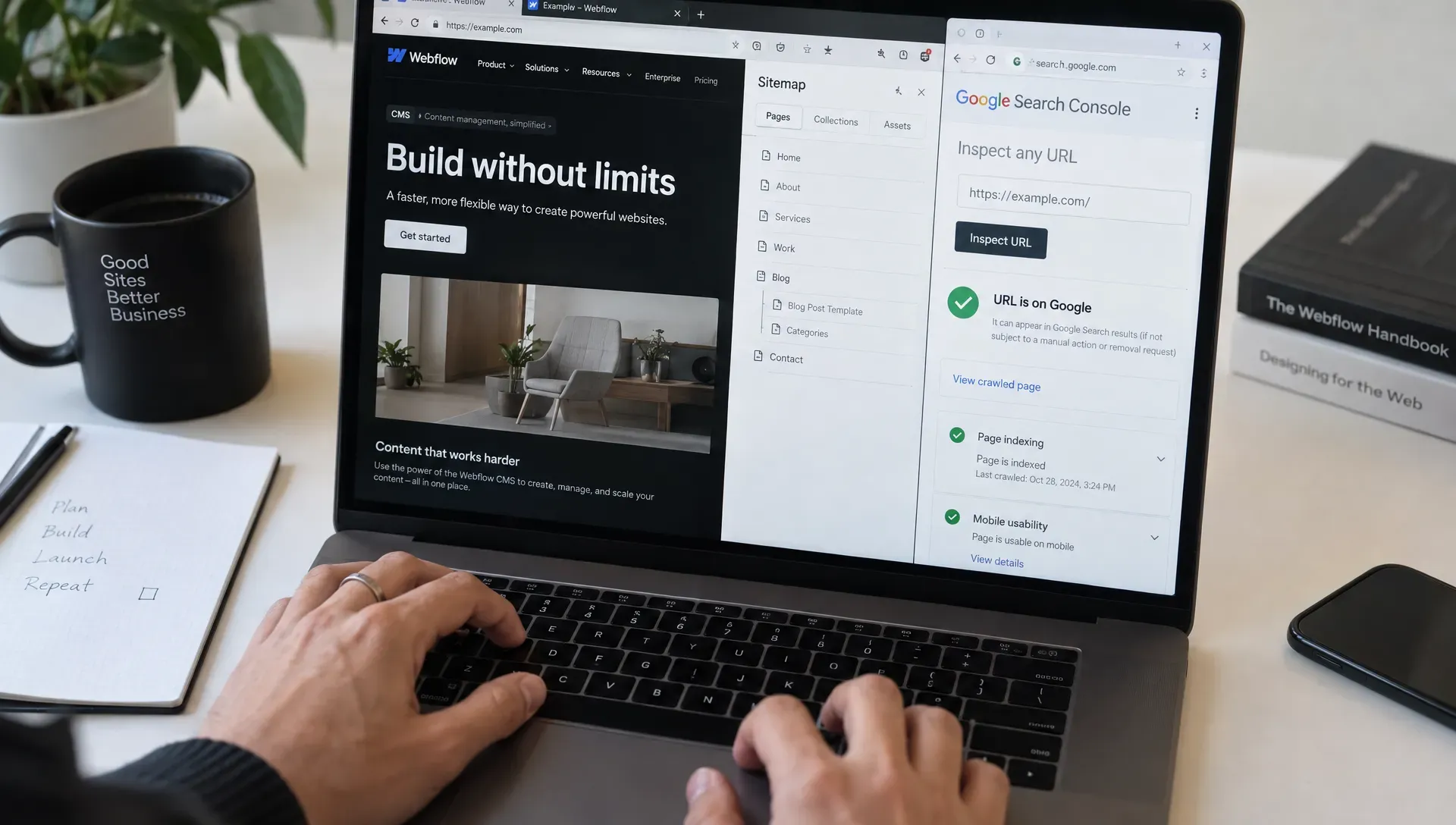
Start with one affected URL in Google Search Console's URL Inspection tool. Record its indexing status, last crawl, crawl permissions and canonical information where available. Then compare it with a working page from the same Collection.
The status reported in the Page indexing report tells you which check comes next.
| Search Console status | What it means | First check |
|---|---|---|
| Discovered, currently not indexed | Google knows the URL but has not crawled it yet | Internal links to the page, sitemap coverage, overall site quality |
| Crawled, currently not indexed | Google fetched the page and chose not to index it for now | Rendered content, duplication with sibling items, page purpose |
| Excluded by "noindex" tag | The page or its HTTP headers ask Google not to index it | Template settings, custom code, X-Robots-Tag header |
| Blocked by robots.txt | Google is not allowed to crawl the path | Production /robots.txt rules |
| Duplicate, Google chose different canonical than user | Google indexed another URL instead of the one you declared | Canonical tag, redirects, sitemap and internal links |
| Not found (404) | The URL no longer returns a page | Item slug, publication status, redirects |
Keep the scope clear: one missing item suggests an item-level problem, while an entire missing Collection suggests a shared template or configuration issue. Neither pattern is proof, but both help narrow a Webflow SEO investigation.
Is Webflow good for SEO indexing?
Webflow CMS items are published as ordinary pages with their own URL, so Google can crawl and index them like any other page. When they stay out of the index, the cause is usually a setting, a template or the content itself, which is why the diagnosis above matters more than the platform.
Confirm that the CMS page is live on the correct domain
Check the public URL directly before investigating Google's decisions.
Open the page in a private browser window on your production domain, not only in Webflow preview or on the webflow.io staging address. Confirm that the Collection item is published and that the latest changes reached the correct publishing destination. Draft, archived or future-scheduled content should not be assumed to be live.
Inspect the HTTP response using browser developer tools or an HTTP status checker.
| Response | What it tells you | Action |
|---|---|---|
| 200 OK | The page is served | Move on to crawl access and directives |
| 301 or 308 | The URL redirects | Check that the destination is the page you want indexed |
| 404 | No page at this address | Fix publication or the slug, or redirect to the replacement |
| 5xx | Server or infrastructure error | Investigate availability, proxy or firewall |
| Password prompt | Content is protected | Remove protection on pages meant for search |
Check the Collection slug and item slug against the URL you submitted to Google. A functioning Webflow CMS Collection structure does not prevent an old address from becoming invalid after an editorial change. Always test the exact address, including its domain and path.
Check whether Google can crawl the page
Crawl access is separate from indexing permission.
Open the production domain's /robots.txt file and inspect rules that could block the affected path. A broad Disallow: / can block crawling across the site, while a Collection-specific rule may affect only a content directory. Review rules that apply to Googlebot as well as general user-agent rules. Our glossary entry on robots.txt explains the syntax.
Do not use robots.txt as a substitute for noindex. Google's introduction to robots.txt states that it is not a mechanism for keeping a page out of Google: a blocked URL can still appear in results, without a description. And Google cannot read a page-level noindex directive if crawling is blocked. Google's documentation on blocking indexing explains this distinction.
If Search Console reports a fetch failure despite an accessible page, investigate password protection, a reverse proxy, firewall rules or other infrastructure in front of Webflow. A successful visit from your own browser does not establish that Googlebot can fetch the same response. Resolve access failures before changing metadata or rewriting content.
Remove unintended noindex directives
A crawlable page can still explicitly tell Google not to index it.
Inspect the published HTML for a robots meta tag containing noindex. Also check response headers: Google's robots meta tag documentation confirms that any rule usable in a robots meta tag can also be sent as an X-Robots-Tag HTTP header, which a proxy or external delivery layer can add without anyone touching Webflow. Review the Collection template's settings, site-wide custom code and any integration that inserts SEO tags.
Fix the source of the directive rather than adding a second tag with a conflicting instruction. Then republish and inspect the production response again.
- Every item in a Collection affected: investigate the template settings and site-wide code first.
- A single item affected: check item-specific conditions or custom fields used by the template.
- Only some locales affected: compare the localized template settings with the primary locale.
Keep staging and production separate. Preventing the Webflow staging subdomain from being indexed can be appropriate, but the production pages you want in search must remain indexable. Sitemap presence alone does not prove that a page allows indexing, which is a common source of false reassurance during a Webflow SEO review.
Check canonical selection in your SEO Webflow audit
A canonical URL identifies the preferred version when similar or duplicate versions exist.
Inspect the published page's canonical tag and compare it with the exact production URL. Check Webflow's global canonical configuration and any custom canonical code. A shared template must not accidentally output one fixed canonical URL for every Collection item. Also check for competing tags inserted by different tools.
For a distinct CMS page intended to rank independently, a self-referencing canonical is usually appropriate. It should reference the preferred HTTPS domain and the correct item path. If you recently changed domains or URL structures, check redirects alongside canonicals. Our guide to preserving SEO during a redesign or migration covers that wider transition.
Compare the user-declared canonical with Google's selected canonical in the indexed URL Inspection data. A canonical is a signal, not a command. Google's canonicalization guidance ranks the signals by strength:
| Signal | Strength according to Google | What to check on a Webflow CMS page |
|---|---|---|
| Redirect | Strong | Old slugs and domains redirect to the preferred URL |
| rel="canonical" | Strong | Each item points to its own production URL |
| Sitemap inclusion | Weak | The sitemap lists the preferred URL, not variants |
The same guidance advises against using robots.txt or noindex to choose a canonical within a site. Align the signals rather than repeatedly submitting competing URLs.
Make the preferred CMS URL easy to discover
Once publication and indexability are correct, check how Google reaches the page.
Open the production /sitemap.xml and confirm that the preferred URL is present where appropriate. If Webflow generates your sitemap automatically, check the relevant sitemap settings and published output. If you maintain a custom sitemap, follow Google's sitemap guidelines:
- use fully qualified, absolute URLs;
- keep each file under 50,000 URLs and 50 MB uncompressed, or split it with a sitemap index;
- do not rely on
<priority>or<changefreq>, which Google ignores; - keep
<lastmod>accurate, because Google only uses it when it is consistently and verifiably correct.
Next, find at least one crawlable internal link to the page. A sitemap helps discovery, but it does not replace useful site navigation. Link CMS items from relevant category pages, resource hubs or related articles. Google's guidance on crawlable links says it can generally only follow an <a> element with an href attribute, so interactions or filters that reveal content only after a click are not a reliable path.
Check older items as well as newly published ones. A Collection List limited to recent entries can leave older pages without internal links if there is no accessible archive or pagination. Webflow SEO work should account for the complete publishing lifecycle, not just whether the latest article appears on the homepage.
Investigate crawled pages that Google still does not index
When technical access is working, repeated submission is rarely the most useful next step. Google describes "Crawled, currently not indexed" as common and not necessarily a problem, so focus on the pages that matter.
Inspect the rendered page and the HTML Google receives where available. Confirm that the main content exists on the published page, CMS fields are populated and conditional visibility has not hidden essential information. A template can return 200 OK while displaying little more than a heading, empty sections or an error-like message.
Then compare the page with similar items in the same Collection. Pages that change only a location name, service label or short introduction may offer little distinct value. Improve the page's purpose and substance rather than adding words to reach an arbitrary length. Clear CMS architecture without unnecessary clutter makes these patterns easier to identify and maintain.
Decide whether the page should exist as an independent search result. Strengthen useful pages with specific answers and supporting detail. Consolidate genuinely overlapping pages into a stronger destination when appropriate, using a permanent redirect for a retired URL. A technically valid page is eligible for consideration, but no Webflow SEO setting guarantees that Google will index it.
Validate the published fix before requesting indexing
Validation should establish what changed, where it changed and whether the live response now matches your intention.
- After publishing, repeat the original checks against the production URL: response status, robots directives, canonical destination, sitemap inclusion and internal links.
- Run Search Console's live test to assess current accessibility and indexability. The indexed report reflects Google's stored information, which may not yet include your latest changes.
- Request indexing for representative corrected URLs once the underlying problem is resolved. Search Console applies a daily limit to inspection requests per property, so pick representative items rather than every URL.
- If the issue affected a Collection template, test several items, including different content types or conditional layouts.
- Record the affected URLs, the original issue, the change and the publication date, then monitor the Page indexing report.
Do not expect an immediate update. Google's URL Inspection documentation states that no test can guarantee a page will be included in the index, and a live test cannot confirm Google's eventual canonical choice. Keeping those distinctions clear makes Webflow SEO reporting more useful to marketing teams.
Avoid fixes that create new indexing problems
The most common troubleshooting mistakes come from changing settings before understanding the reported issue.
| Tempting fix | Why it backfires | Do this instead |
|---|---|---|
| Change robots rules, canonicals and the sitemap at once | You cannot tell which change worked, and intentionally excluded URLs may be exposed | Make the smallest correction for the confirmed cause, then validate |
| Add every CMS URL to the sitemap | Drafts, duplicates and excluded content do not become useful by submission | List only preferred, indexable URLs |
| Redirect every non-indexed page to the homepage | The redirect loses the relationship between old and new content | Redirect to a genuinely equivalent page, or improve the original |
| Rely on a site: search | It is not a complete inventory of indexed pages | Use URL Inspection and the Page indexing report |
| Rewrite all metadata | Titles and descriptions do not override blocked crawling, noindex or a wrong canonical | Fix the access or directive problem first |
Use this checklist before closing the issue
Treat indexing checks as part of publishing quality assurance, alongside your broader Webflow SEO launch checklist.
- Verify the destination: the exact production URL loads publicly and returns the expected successful response.
- Confirm publication: the CMS item and relevant template changes are live on the intended domain.
- Check crawl access: robots rules, passwords and infrastructure do not block Google from fetching the page.
- Inspect indexing directives: the live HTML and response headers contain no unintended
noindexinstruction. - Validate canonical signals: the canonical, redirects, sitemap and internal links support the intended preferred URL.
- Confirm discovery: the page has relevant crawlable links and appropriate sitemap coverage.
- Review the content: the published page contains complete, useful information with a distinct purpose.
- Document validation: you have tested the live URL, recorded the fix and established which Search Console signals to monitor.
Assign ongoing ownership to someone who can coordinate CMS publishing and technical changes. An editor may notice a missing page, but a template-level fix can require access to settings, custom code or infrastructure. A clear handoff prevents the same issue from returning with the next publishing cycle.
Fix the first failed check, then validate the result
Indexing problems are easier to resolve when you separate publication, discovery, crawl access, canonical selection and content assessment. Start with the evidence for one URL, fix the earliest confirmed failure and test the shared template only when the pattern supports it.
How BeBranded handles indexing issues
When pages are published but Google does not pick them up, BeBranded starts with a technical SEO audit rather than a rewrite. We crawl every URL on the site, cross-check what is actually indexed in Search Console, and surface pages that are blocked, orphaned or duplicated. Each issue is traced back to its cause, from robots rules and noindex settings to canonical tags and sitemaps, then turned into a plan ranked by effort against impact. We work on Webflow and Next.js sites alike, and can ship the fixes ourselves. See our technical SEO audit service, or book a call if a whole Collection is missing from search.
Sources
- 1. Google Search Console Help: URL Inspection tool · support.google.com/webmasters/answer/9012289
- 2. Google Search Console Help: Page indexing report · support.google.com/webmasters/answer/7440203
- 3. Google Search Central: Block search indexing with noindex · developers.google.com/search/docs/crawling-indexing/block-indexing
- 4. Google Search Central: Introduction to robots.txt · developers.google.com/search/docs/crawling-indexing/robots/intro
- 5. Google Search Central: Robots meta tag and X-Robots-Tag · developers.google.com/search/docs/crawling-indexing/robots-meta-tag
- 6. Google Search Central: How to specify a canonical URL · developers.google.com/search/docs/crawling-indexing/consolidate-duplicate-urls
- 7. Google Search Central: Build and submit a sitemap · developers.google.com/search/docs/crawling-indexing/sitemaps/build-sitemap
- 8. Google Search Central: Make your links crawlable · developers.google.com/search/docs/crawling-indexing/links-crawlable