SEO Webflow: the complete guide for 2026
SEO
•
X min
•
Published on
27.03.2026
•
Updated on
18.08.2026
Webflow is one of the best platforms for technical SEO. It natively offers clean HTML code, performant CDN hosting, automatic SSL, an XML sitemap generated with every publication, images served in WebP, and native lazy loading. But the tool does not do everything: title tags, meta descriptions, alt attributes, heading hierarchy, Open Graph, structured data, and internal linking must all be configured manually. The Webflow CMS allows automating SEO tags for dynamic content (blog, portfolio, catalog). Advanced features like structured data (schema.org) and multilingual support (Webflow Localization) are available but require custom code and a paid add-on respectively. The limitations are real (no built-in SEO plugin like Yoast, schema via custom code, CMS limits) but are largely offset by the native technical quality. This article covers everything you need to know to optimize the SEO of a Webflow site in 2026.
Is Webflow good for SEO? That is the question most founders, marketing managers, and digital project leads ask when they consider the platform for their site. The short answer is yes: Webflow is one of the best platforms available for technical SEO. Its code is clean, its hosting is performant, and the control over tags and SEO settings is complete.
The more nuanced answer is that the tool does not do the SEO strategy for you. Content, keywords, link building, information architecture, and internal linking remain human work. Webflow provides the strongest possible technical foundations, but it is up to the team to build on them with a coherent strategy.
This article is a complete guide covering everything Webflow handles natively for SEO, the optimizations you need to configure yourself, the advanced features available, and the limitations to anticipate. It complements our existing Webflow SEO checklist by going deeper into the mechanisms and best practices behind each verification point.
Yes. Webflow offers technical SEO foundations among the best on the market, without any prior configuration or plugin to install. Here is what the platform handles natively.
The HTML code generated by Webflow is clean and semantic. Unlike WordPress, where the accumulation of themes and plugins often produces bloated code that slows the site and complicates the work of search engines, Webflow generates structured HTML without unnecessary overhead. Hosting is integrated and performant: global CDN (Fastly/AWS), automatic SSL certificate on all sites, GZIP/Brotli compression enabled by default. These elements contribute directly to strong Core Web Vitals, which are a Google ranking factor.
The XML sitemap is generated automatically and updated with every publication. The robots.txt file is customizable. Images are automatically served in WebP format when the visitor's browser supports it, reducing their size without visible quality loss. Lazy loading is natively available for images. CSS and JavaScript minification is activatable in the project settings. And most importantly, there are no third-party plugins weighing down the code: essential features (CMS, forms, animations, SEO) are built into the platform.
In short, Webflow natively offers clean code, performant CDN hosting, automatic SSL, an XML sitemap, WebP images, lazy loading, and CSS/JS minification. It is one of the most advantageous platforms for technical SEO because it eliminates the most common performance problems before the user even starts working.
The technical foundations are solid by default, but several essential optimizations must be configured manually. These configurations are straightforward in the Webflow interface, but they must be done rigorously on every page of the site. Here are the ten steps to follow.
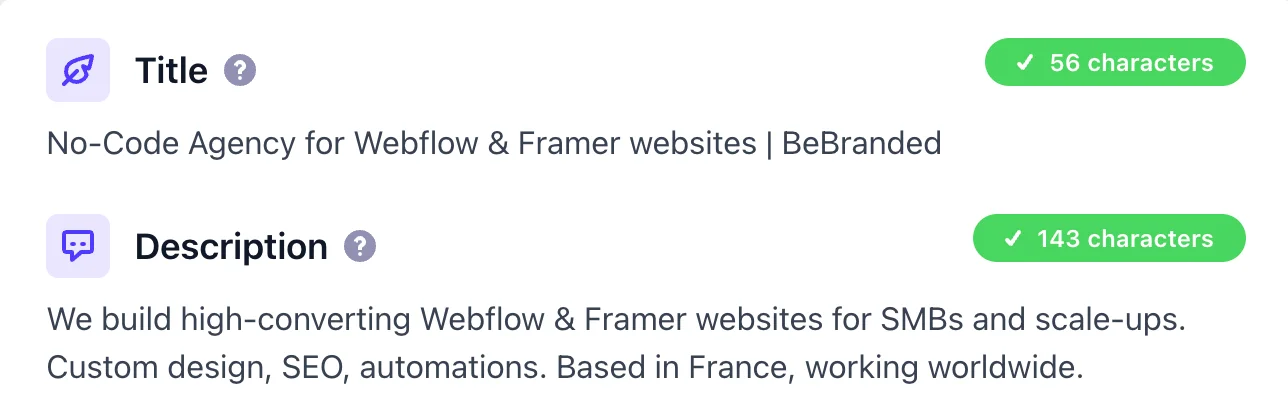
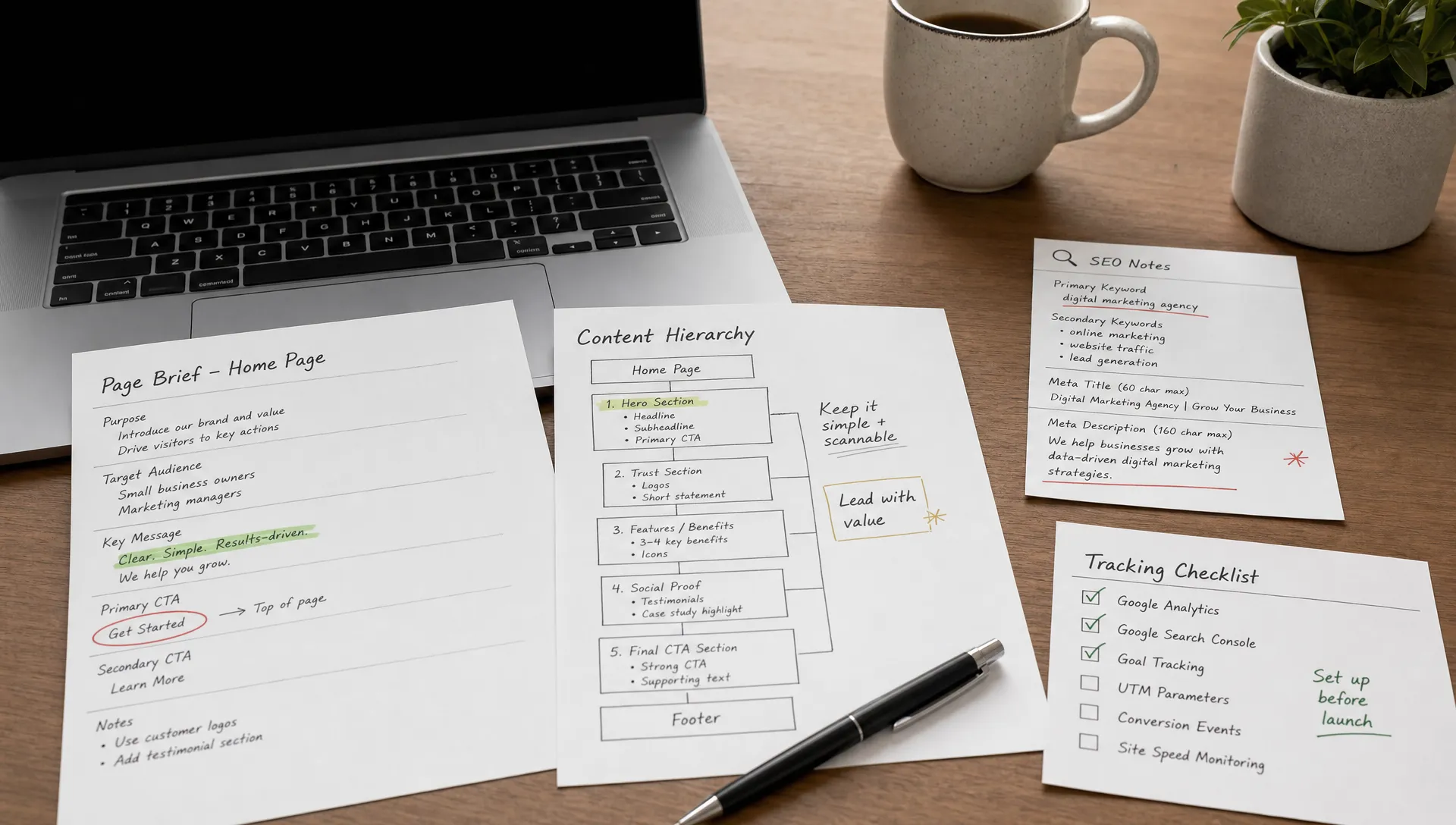
Every page on the site must have a unique, optimized title tag and meta description. In Webflow, these tags are configured in Page Settings > SEO Settings. The title tag should be under 60 characters and contain the page's primary keyword. The meta description should be under 155 characters and give a clear reason to click. These two elements are what users see in Google search results: they directly influence click-through rate.
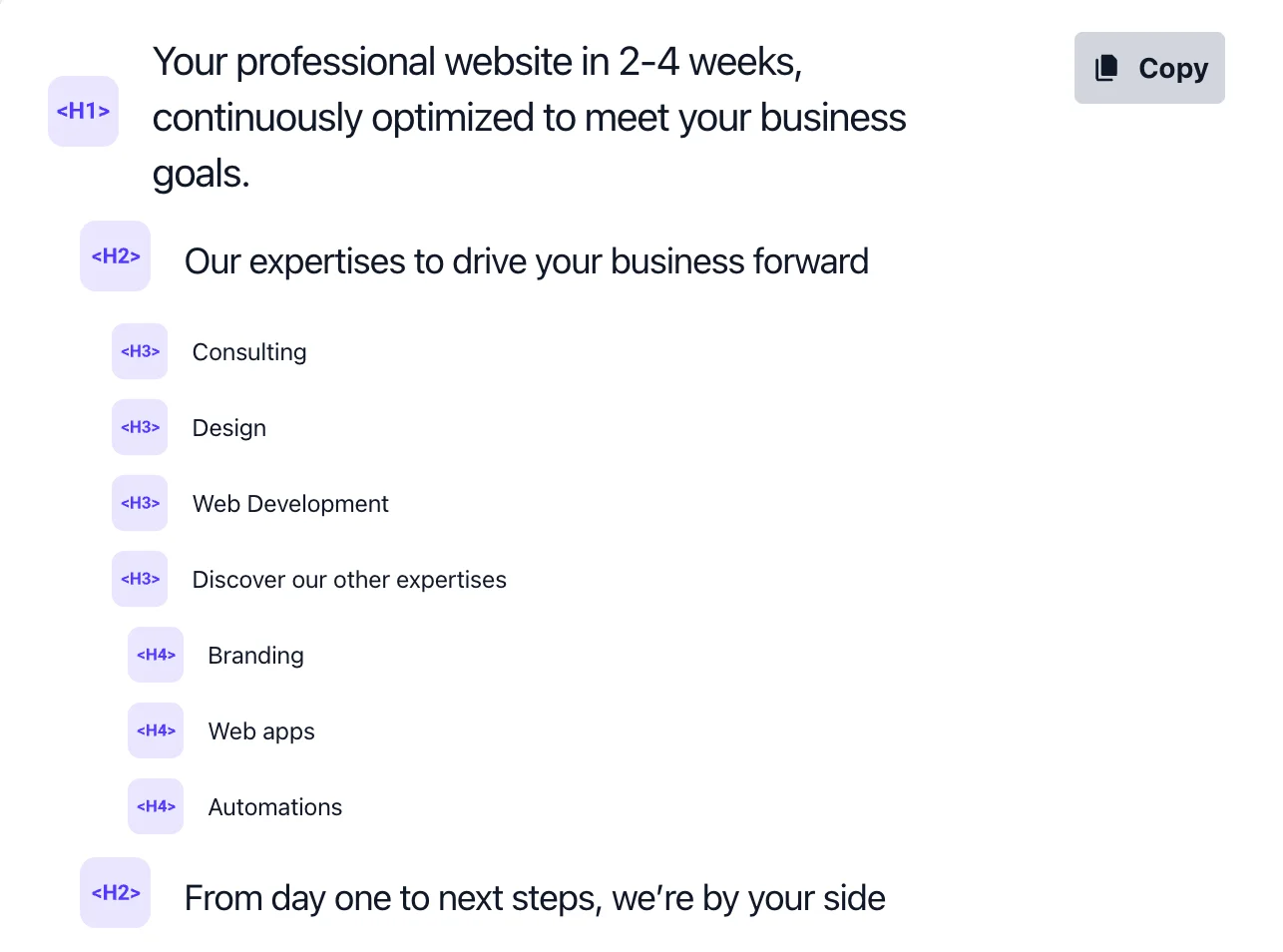
Heading hierarchy is an important SEO signal. Each page should have a single H1 (the main title), followed by H2s for main sections and H3s for subsections. In the Webflow Designer, the heading tag is set in each text element's settings (Typography > Tag). Tags are not assigned automatically: it is up to the designer or developer to configure them. A consistent heading hierarchy helps Google understand the content structure and improves accessibility for screen readers.
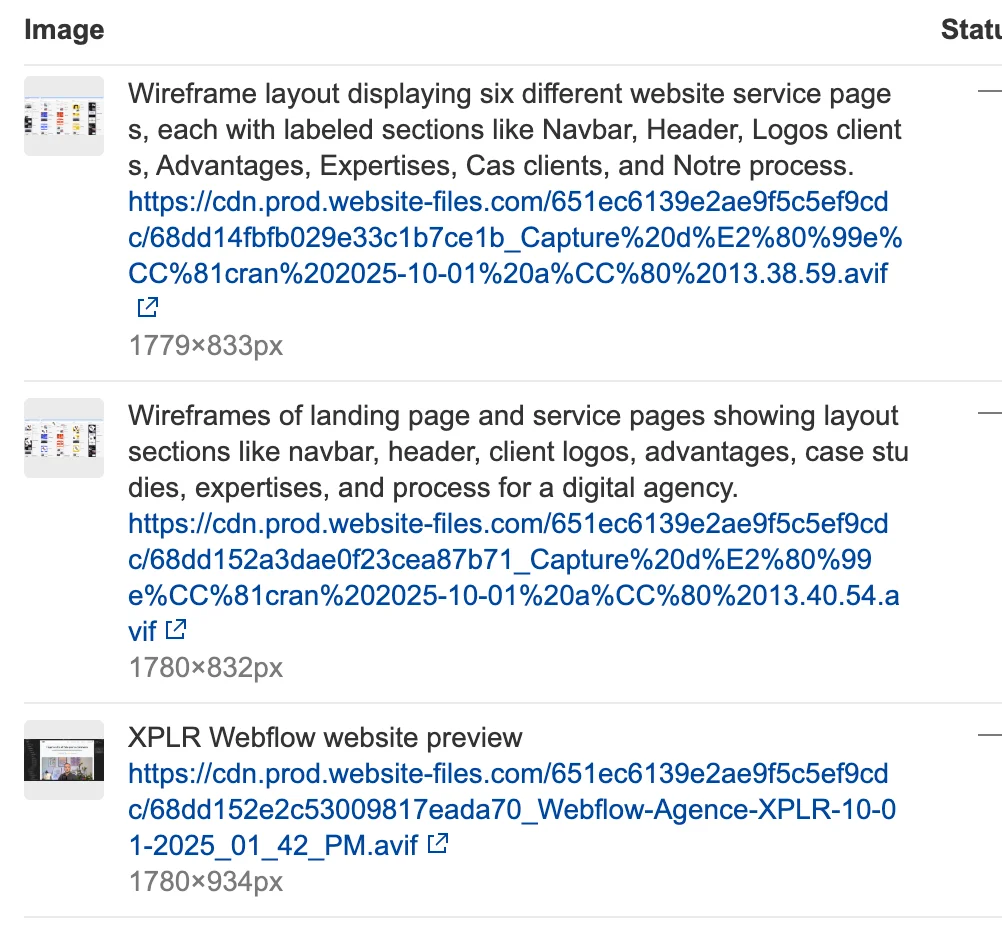
The alt attribute describes an image's content for search engines and assistive technologies. In Webflow, it is set in each image's settings (click the image > Settings > Alt Text). Every content image should have a descriptive, relevant alt attribute. Purely decorative images can have an empty alt. This step is often overlooked, but it contributes to both image SEO and site accessibility.
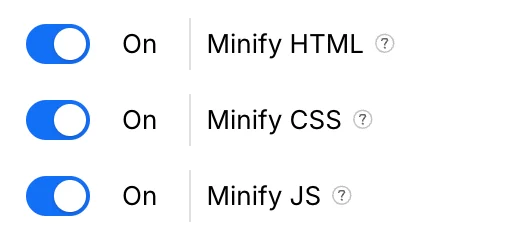
Minification reduces the size of CSS and JavaScript files by removing spaces, comments, and unnecessary characters. In Webflow, this option is activated in Project Settings > Hosting > Minify CSS and Minify JS. It is a checkbox that improves loading times with zero additional effort. It should be enabled on every production site.

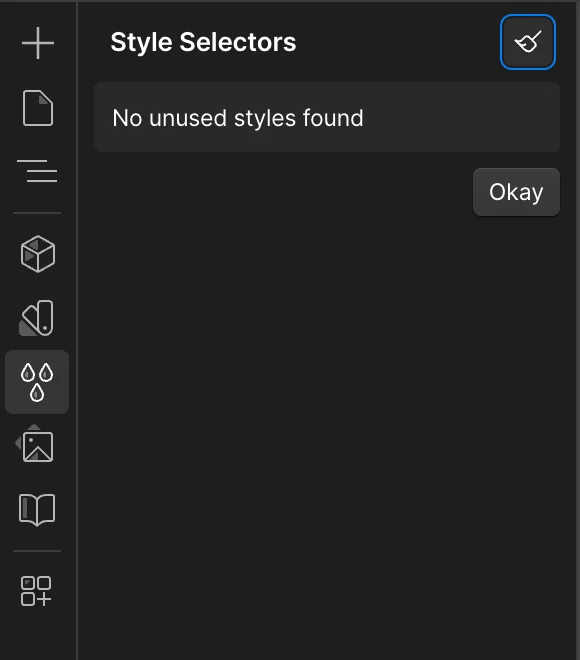
Over the course of development, CSS classes and interactions accumulate without being used by any element on the site. This "dead code" unnecessarily increases file sizes. Webflow provides two cleanup tools: Style Manager > Clean Up to remove unused styles, and Interactions > Clean Up for orphaned interactions. A cleanup before going live and periodically after updates is a good practice that contributes to performance.
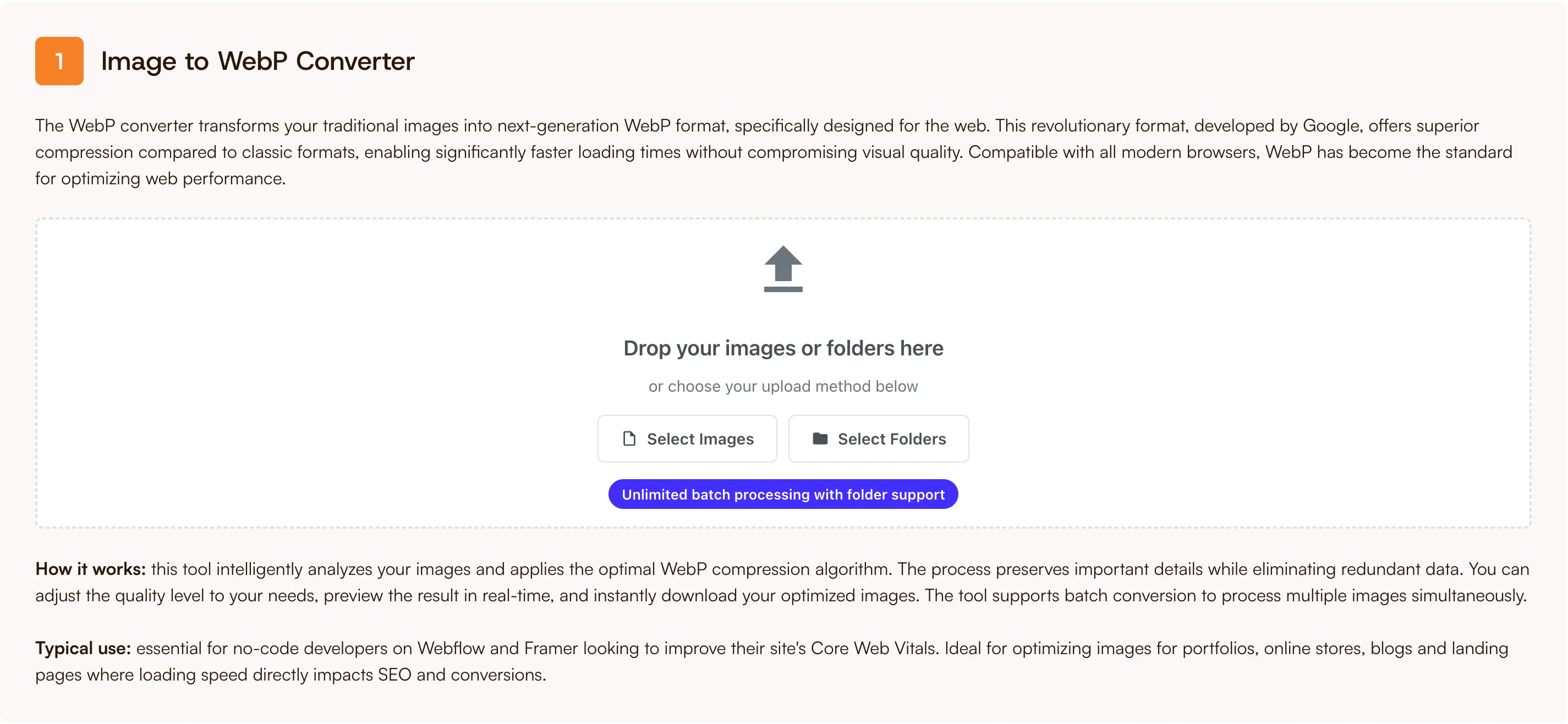
Webflow automatically optimizes images and serves them in WebP, but it does not compensate for a 5 MB source file. Compressing images before upload (with our own tool Image to WebP) significantly reduces page weight and improves LCP (Largest Contentful Paint), one of the three Core Web Vitals metrics. For more on resource management, our article on optimizing Webflow bandwidth covers best practices in detail.
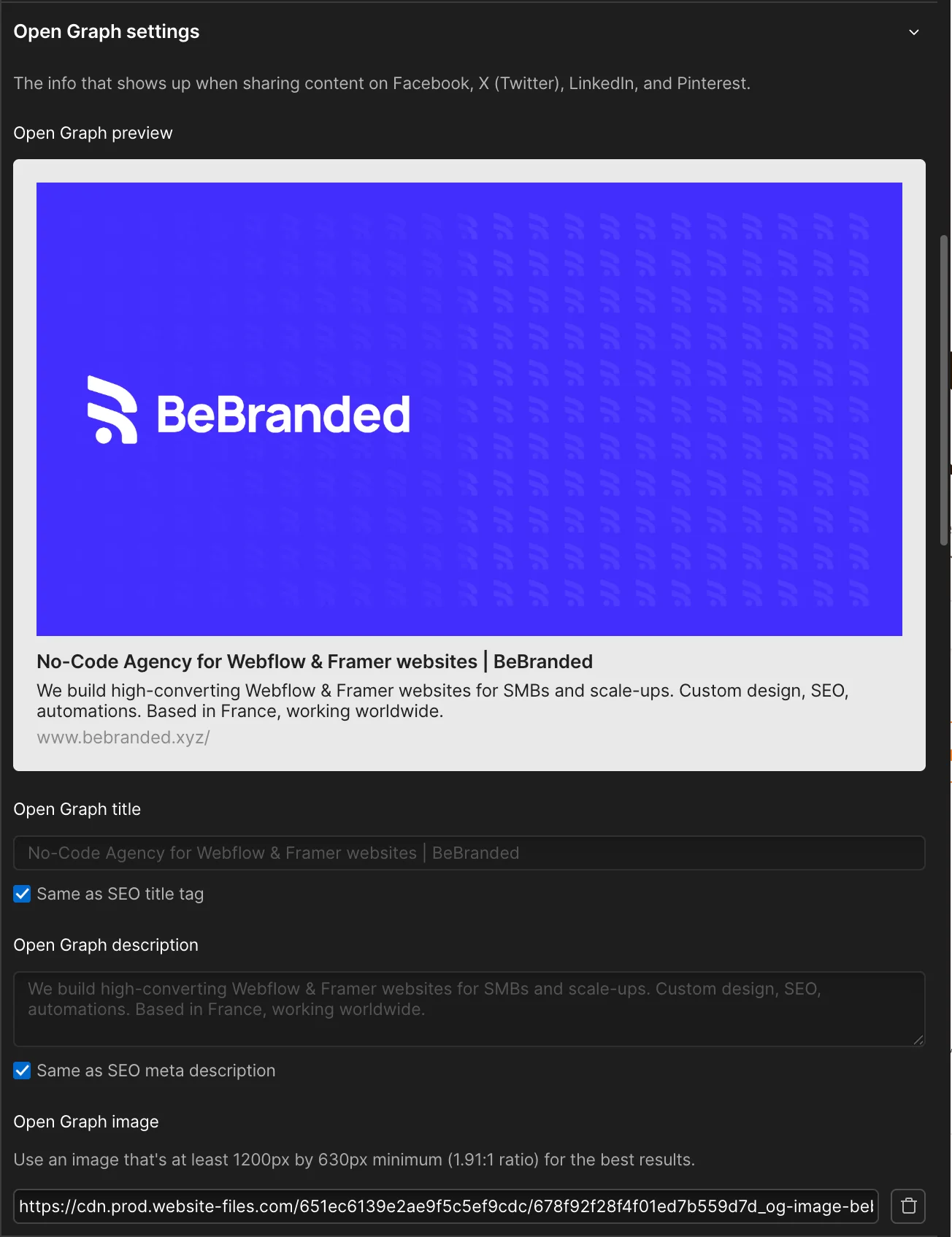
Open Graph tags control the preview that appears when a page is shared on social media (Facebook, LinkedIn, Twitter/X). In Webflow, they are configured in Page Settings > Open Graph Settings. You need to fill in a title, description, and image for each page. This is not a direct SEO ranking factor, but a good social preview generates more clicks and shares, which indirectly contributes to the site's visibility.
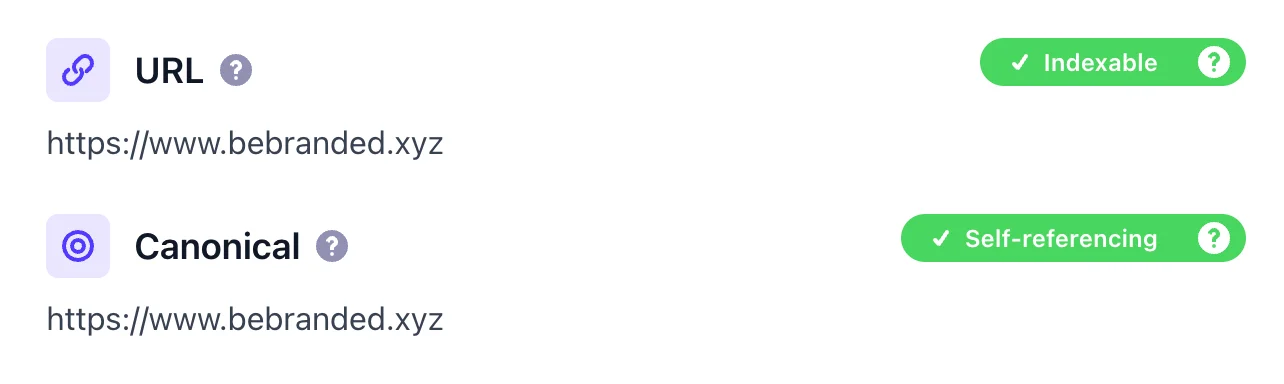
Canonical tags tell Google which is the reference version of a page when multiple URLs serve identical or very similar content. In Webflow, canonical tags are not configurable through the visual interface: they must be added via custom code in the page's head (Page Settings > Custom Code > Head Code). This step is particularly important for multilingual sites or for pages that can be accessed through multiple URLs.
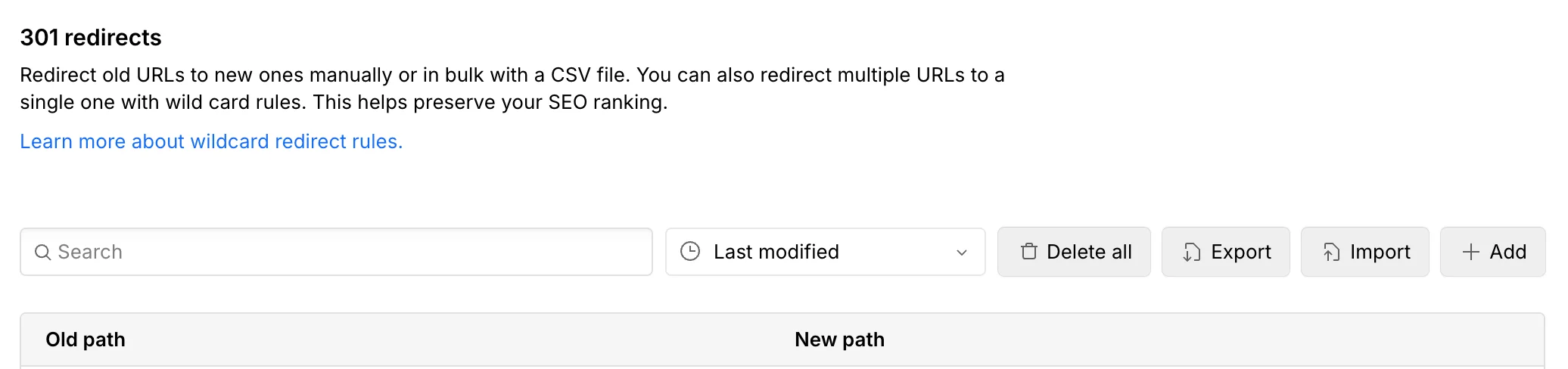
301 redirects are essential when a page is deleted, moved, or renamed. Without a redirect, the old URL returns a 404 error and the associated SEO capital is lost. In Webflow, redirects are managed in Project Settings > Hosting > 301 Redirects. The interface is simple and visual: you enter the old URL and the new URL, and the redirect is active immediately. This is much simpler than managing redirects through .htaccess files on WordPress. For website redesign projects, a comprehensive redirect plan is a critical step for preserving organic traffic.
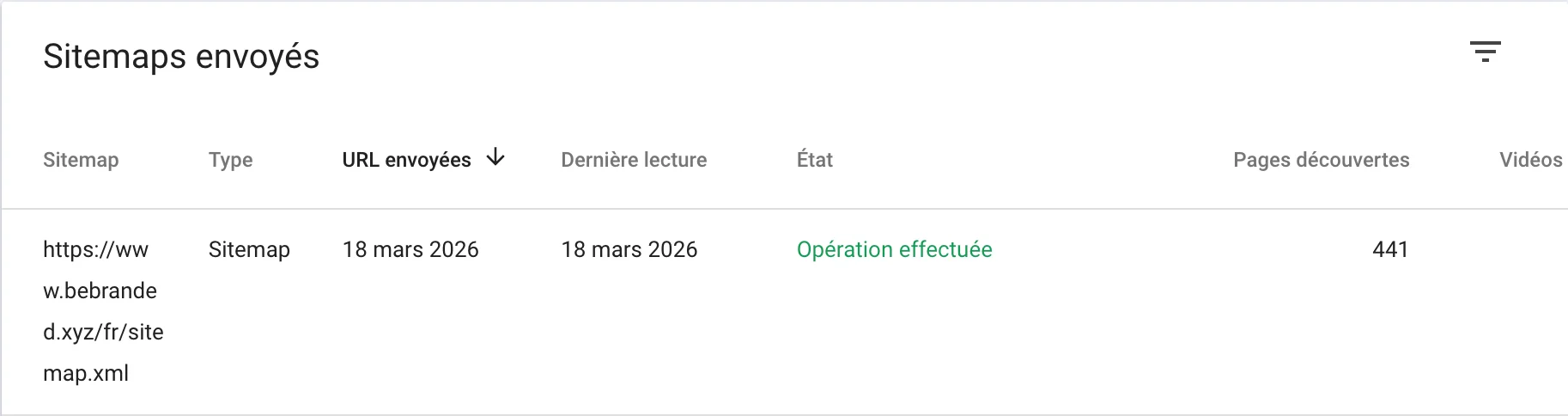
After going live (or after a significant update), the XML sitemap should be submitted in Google Search Console to speed up page indexation. The Webflow sitemap is accessible at yourdomain.com/sitemap.xml. In Search Console, go to Sitemaps > Add a new sitemap > enter the sitemap URL. This submission informs Google that there is content to crawl and index, which reduces the delay between publication and appearance in search results.
The Webflow CMS is an essential SEO lever because it allows automatically generating SEO tags for each dynamic page based on the collection fields. This is what makes a large-scale content SEO strategy possible on Webflow.
Concretely, when you create a "Blog posts" collection with fields like "title," "summary," "cover image," and "slug," you can link these fields to the SEO tags of the collection page template. The "title" field automatically feeds the title tag, the "summary" field feeds the meta description, the "cover image" field feeds the Open Graph image, and the "slug" field defines the page URL. Every new article created in the CMS automatically inherits these bindings, which ensures SEO tags are always filled in consistently.
This automation eliminates the risk of forgetting a title tag or meta description on a blog post or product page. It also allows creating CMS page templates with a consistent heading structure (H1 for the article title, H2 for subsections) that applies automatically to every new piece of content. The CMS is what makes Webflow a complete SEO platform, not just a design tool with a few SEO settings as a bonus.
Beyond the basic optimizations, Webflow offers advanced features that cover the needs of more ambitious projects.
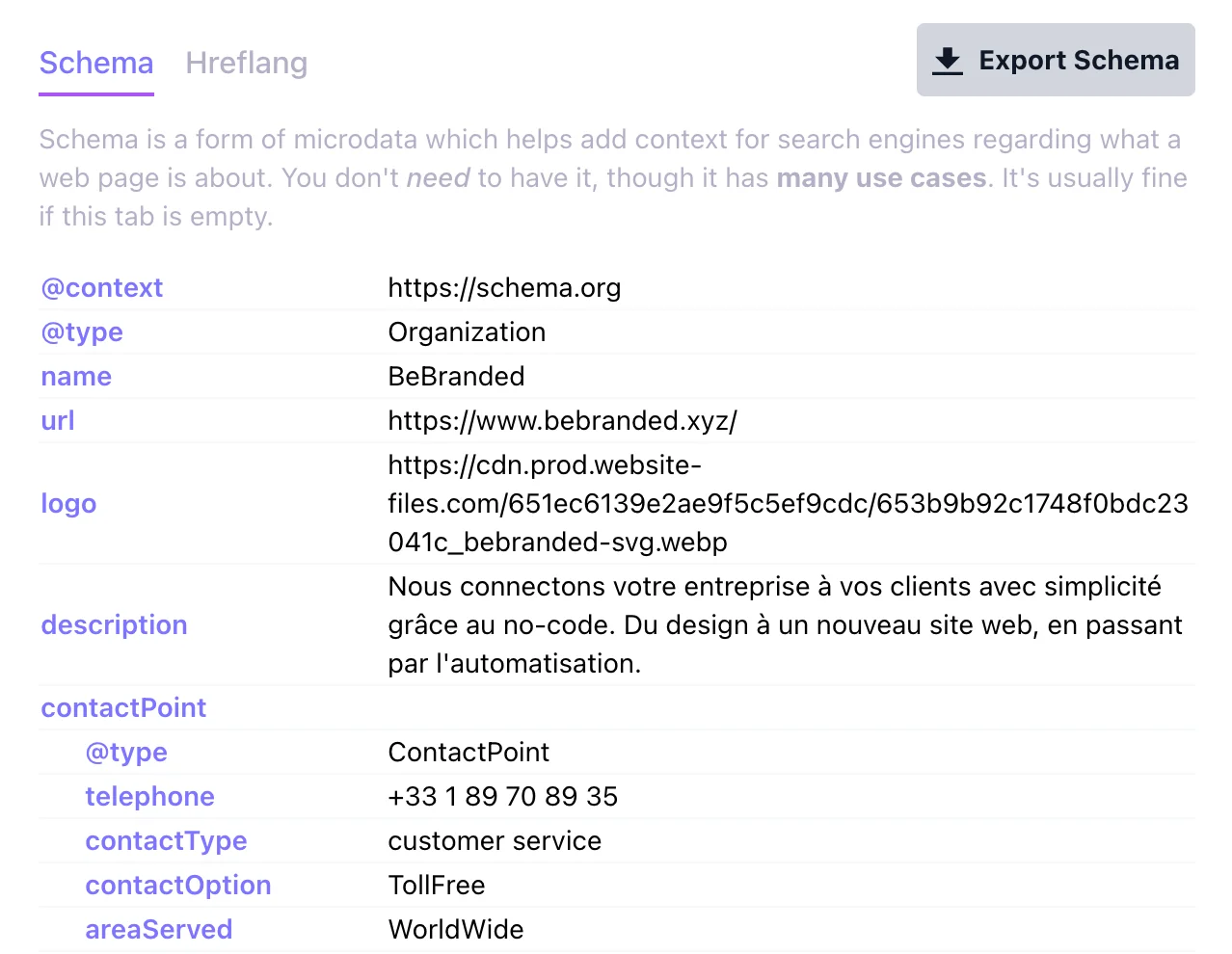
Structured data (schema.org) allows providing Google with explicit information about a page's content: page type (article, product, FAQ, event), author, publication date, rating, price, and more. This data can trigger rich snippets in search results (stars, FAQs, prices), which increases visibility and click-through rate.
Webflow does not offer native configuration for structured data. It must be added via custom code in JSON-LD format, either in the page's head (Page Settings > Custom Code > Head Code) or in an HTML embed directly in the content. For CMS pages, collection fields can be used to make the schema dynamic. Our dedicated article on schema.org markup in Webflow covers the implementation process in detail. For multilingual sites, our guide on multilingual FAQ schema explains how to adapt structured data for each language.
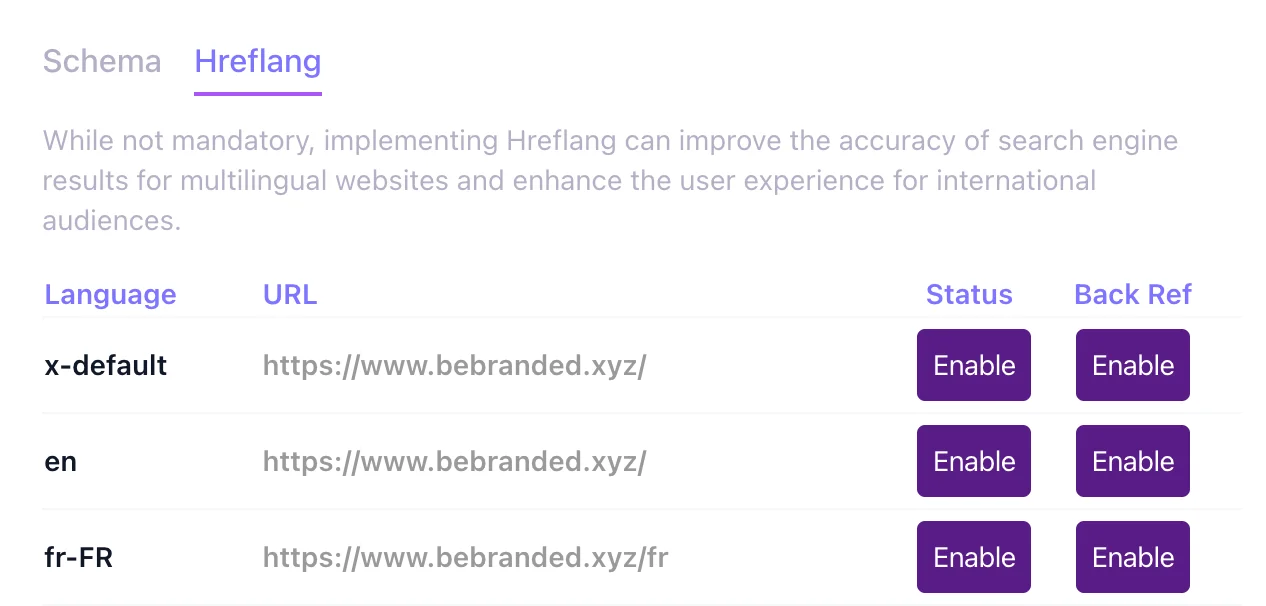
Webflow Localization is Webflow's native add-on for managing multilingual sites. It creates distinct URLs for each language (for example /fr/page and /en/page), automatically generates hreflang tags that indicate to Google the correspondence between language versions, and produces a sitemap per language. AI-assisted translation is integrated to speed up the process. For teams choosing between Webflow Localization and a third-party solution, our comparison of Webflow Localization vs Weglot details the strengths and limitations of each approach.
The robots.txt file tells search engines which parts of the site to crawl and which to ignore. Webflow generates a default robots.txt that allows crawling of the entire site. This file is customizable in Project Settings > SEO > Robots.txt. It is useful for blocking crawling of certain sections (test pages, specific directories) or for adding directives specific to certain crawlers.
Each Webflow page can be set to noindex individually via Page Settings > SEO Settings > Exclude this page from search results. This option prevents Google from indexing the page while keeping it accessible to visitors who have the direct link. It is useful for thank-you pages after form submissions, test pages, or pages that should not appear in search results.
Webflow generates clean URLs by default: no dynamic parameters (?id=123), no special characters, no random strings. URLs are based on the page slug (customizable), which allows including the primary keyword in the URL. CMS page URLs are based on the collection item slug, also customizable. This is a structural SEO advantage because clean, descriptive URLs are better understood by Google and receive more clicks from users in search results.
Site performance is a Google ranking factor, and Webflow starts with a structural advantage thanks to its CDN hosting, automatic compression, and clean code. But several factors can degrade scores if not managed carefully.
Uncompressed images before upload are the most frequent cause of poor LCP scores. Even though Webflow converts images to WebP, a 5 MB source file remains heavy to load. Complex animations and interactions, especially when they use poorly optimized custom JavaScript code, can impact INP (Interaction to Next Paint) by occupying the browser's main thread. Unpreloaded web fonts cause text shifts that degrade CLS (Cumulative Layout Shift). Heavy third-party embeds (autoplay YouTube or Vimeo videos, chat widgets, multiple tracking scripts) add weight and JavaScript to every page.
Best practices for maintaining good scores include compressing images before upload, using lazy loading on below-the-fold images, limiting the number of third-party scripts and loading them asynchronously, preloading critical fonts, and testing regularly with PageSpeed Insights and Lighthouse. Performance is not a one-time setting: it is an indicator to monitor over time, because adding a script or modifying content can degrade a score that was previously good.
Internal linking, the links between the pages of your own site, is one of the most underestimated SEO pillars. It helps Google understand the site structure, discover new pages, and distribute authority ("link juice") between pages. A site with strong internal linking helps Google identify the most important pages and facilitates indexation of the entire content.
In Webflow, internal linking is entirely manual. There is no plugin that automatically generates links between pages (as some WordPress plugins offer). This is both a constraint (it requires rigor) and an advantage (each link is placed intentionally, with a relevant descriptive anchor). The best practice is to link pages with anchors that describe the destination page's content, not with generic text like "click here" or "learn more." The site structure should remain shallow (three to four levels maximum between the homepage and any page), and blog posts should be linked to corresponding service pages and vice versa.
The Webflow CMS also allows creating contextual links between related content. For example, a "related articles" field in a blog collection can link to other articles on similar topics, which enriches internal linking in a structured way. For a broader look at SEO strategy as a whole, our article on improving SEO visibility covers best practices beyond the technical aspect alone.
Webflow excels on the technical front, but it has limitations worth knowing to avoid surprises.
The first limitation is the absence of a built-in SEO plugin comparable to Yoast or RankMath on WordPress. Webflow does not offer a real-time SEO score, readability analysis, or keyword suggestions during writing. All SEO optimizations are configured manually, which gives more control but requires more rigor and knowledge. For teams accustomed to Yoast, the transition can feel austere at first.
The second limitation concerns structured data. Schema.org markup requires custom code (JSON-LD) because Webflow does not offer a visual interface to configure it. It is feasible and documented, but it adds a technical layer that non-developer profiles cannot handle on their own.
The third limitation is related to the CMS. The number of items is limited by plan (10,000 items on the Business plan), the number of collections is capped, and some advanced features (complex dynamic filtering, full-text search) require third-party solutions. For most brochure sites and blogs, these limits are never reached. For projects with very high content volumes, they must be anticipated. Our article on Webflow pricing in 2026 details the limits by plan.
The fourth limitation is the lack of accessible server logs. Unlike dedicated hosting where logs allow analyzing Google's crawler behavior (which pages are crawled, how frequently, what errors are encountered), Webflow does not provide access to this information. Google Search Console partially compensates for this gap, but fine-grained crawl analysis is not natively possible.
The fifth limitation, and the most important to understand, is that Webflow does not do the SEO strategy for you. The tool provides the best possible technical foundations, but content, keywords, link building, editorial strategy, and competitive analysis remain human work. A technically perfect Webflow site with no quality content and no keyword strategy will not rank in Google. The tool is a necessary but not sufficient condition. To understand how SEO is evolving with the arrival of generative AI in search results, our article on the difference between GEO and SEO covers this emerging topic.
These limitations are real, but they are largely offset by Webflow's native technical quality. On WordPress, performance problems linked to plugins, server maintenance, extension conflicts, and security vulnerabilities represent a recurring cost and risk that Webflow eliminates by design. The tradeoff is favorable in the vast majority of cases.
Webflow is one of the best platforms available for technical SEO. Its native advantages (clean code, CDN, SSL, sitemap, WebP, lazy loading, minification) provide solid foundations that many other platforms only offer after configuration or plugin installation. Manual optimizations (tags, heading hierarchy, alt attributes, redirects, internal linking) are straightforward to configure in the interface and give complete control over search optimization.
Limitations exist (no built-in SEO plugin like Yoast, structured data via custom code, CMS limits, no server logs) but they are largely offset by the native technical quality and the absence of server maintenance. SEO is not just about technology: content, keyword strategy, and link building remain human work, regardless of the platform.
For a concise, actionable version of all these optimizations, our Webflow SEO checklist is a reference document to keep on hand.
If you want an SEO audit of your Webflow site or support integrating technical SEO from the design phase of your project, you can get in touch with us for an initial conversation. We will start from your objectives and current situation to build a tailored SEO action plan.