How Webflow Editor permissions should work for marketing teams
Comparison
•
X min
•
Published on
28.08.2026
•
Updated on
22.09.2026
A Webflow site gives marketing teams more control, but control without permissions creates avoidable risk. One person changes a headline, another edits a CMS item, someone publishes a campaign page without checking metadata, and the website slowly becomes harder to trust.
The goal is not to lock marketers out. The goal is to make the Webflow Editor useful for day-to-day updates while keeping structure, SEO and brand consistency protected. This article explains how Webflow Editor permissions should work for marketing teams, what access each role needs and how to review permissions without slowing execution.
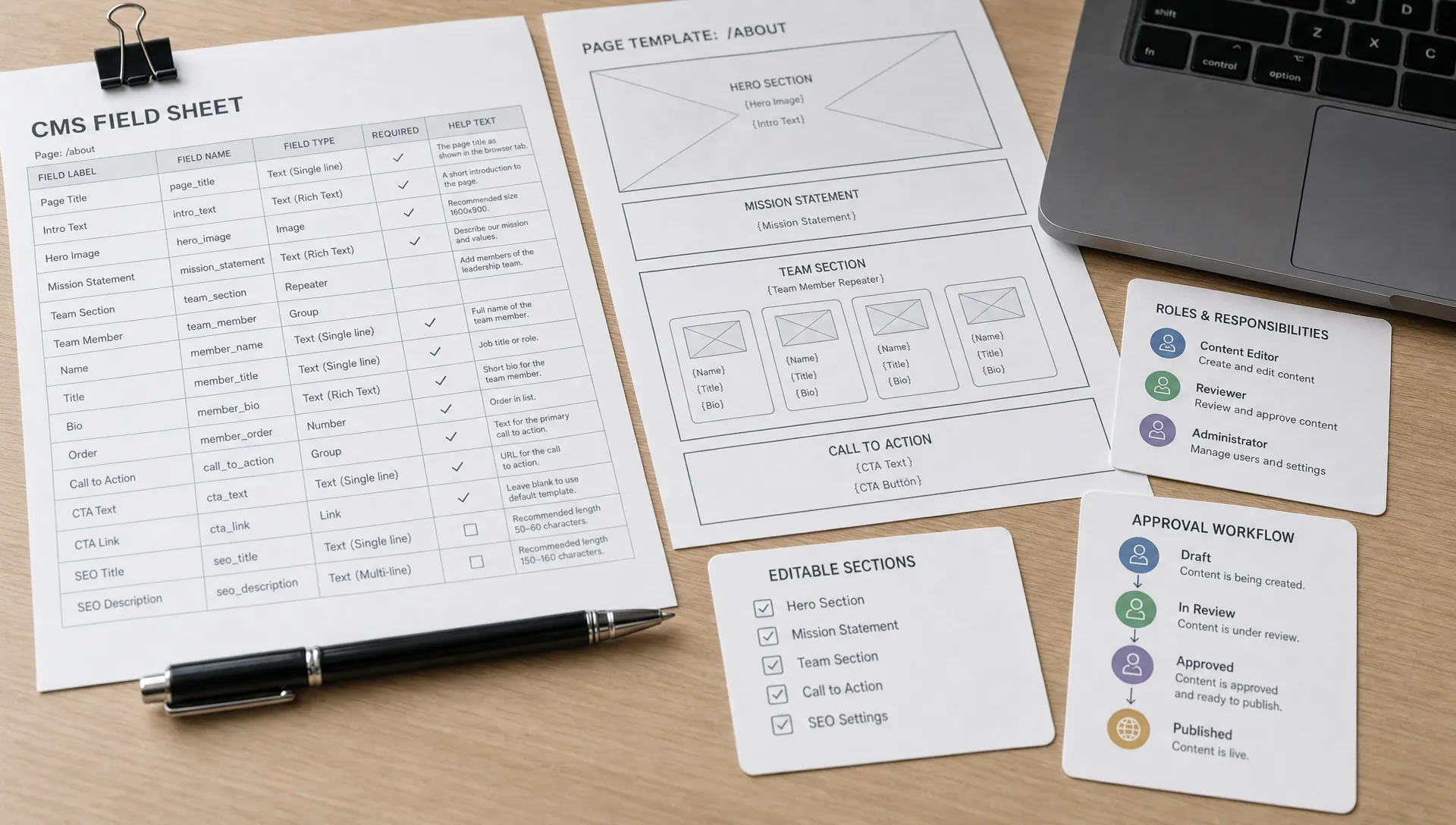
The Webflow Editor is the content editing environment that lets non-technical users update website content without working inside the full Webflow Designer. In practice, it is useful for changing page copy, replacing images and managing CMS items such as blog posts, case studies, jobs or resources.
For marketing teams, the Editor should be treated as an operational layer. It is where approved content gets updated, not where layout decisions, component changes or structural experiments should happen.
The Webflow Designer is different. It controls layout, classes, components, responsiveness, interactions, page settings and deeper technical setup. If your team gives Designer access to everyone who needs to fix a typo, the site will become harder to maintain. Teams still ramping up on the platform can start with our guide to getting started with Webflow before assigning Designer access.
Webflow Editor permissions should be based on the level of risk attached to each action. Updating a blog paragraph is low risk. Changing a homepage hero, deleting CMS fields or publishing a pricing page is higher risk.
This matters because marketing teams often confuse speed with unrestricted access. A better model is controlled autonomy. Editors can move quickly inside clear boundaries, while higher-risk changes go through review.
If your team is still defining how Webflow fits into the marketing stack, our article on how Webflow supports marketing teams gives broader context on where the platform creates useful autonomy.
A good permission model should answer four questions before anyone receives access. What can this person edit? What can they publish? Who reviews high-impact pages? Who is responsible if something breaks?
Use a simple framework before configuring access. This prevents permissions from being decided reactively each time someone joins the team or needs a quick update.
This framework keeps the Webflow Editor focused on its real value: enabling marketing updates without exposing the whole site to unnecessary changes.
The right permission setup depends on your team size, Webflow plan and internal process. The table below is a practical governance model, not a replacement for checking your actual Webflow role settings.
Use it as a starting point when deciding who should edit, review and publish.
| Role | Recommended access | Publishing rule | Reason |
|---|---|---|---|
| CMO or founder | Review access, limited direct editing | Can approve high-impact changes | Keeps business ownership clear without making leadership responsible for routine updates |
| Marketing manager | Editor access for pages and CMS content they own | Can publish low-risk updates after checklist review | Supports campaign speed while keeping quality control in place |
| Content marketer | CMS editing for blog posts, resources and case studies | Should submit for review before publishing | Reduces SEO and formatting errors on content-heavy sections |
| SEO specialist | Access to content, metadata and SEO-relevant fields where appropriate | Can approve SEO-sensitive updates | Protects indexing, titles, descriptions, slugs and internal linking |
| Designer or Webflow developer | Designer access for layout, CMS structure and components | Can publish structural changes after QA | Ensures visual, responsive and technical consistency |
| External freelancer | Temporary access limited to the assigned scope | No publishing access unless explicitly approved | Limits risk and makes accountability easier |
The key point is that seniority alone should not decide access. A founder may approve final messaging, but that does not mean they need to adjust CMS fields. A content marketer may create excellent articles, but that does not mean they should change page templates.
Approval workflows often fail because they are too heavy for the type of change being made. A typo fix should not need the same process as a homepage repositioning.
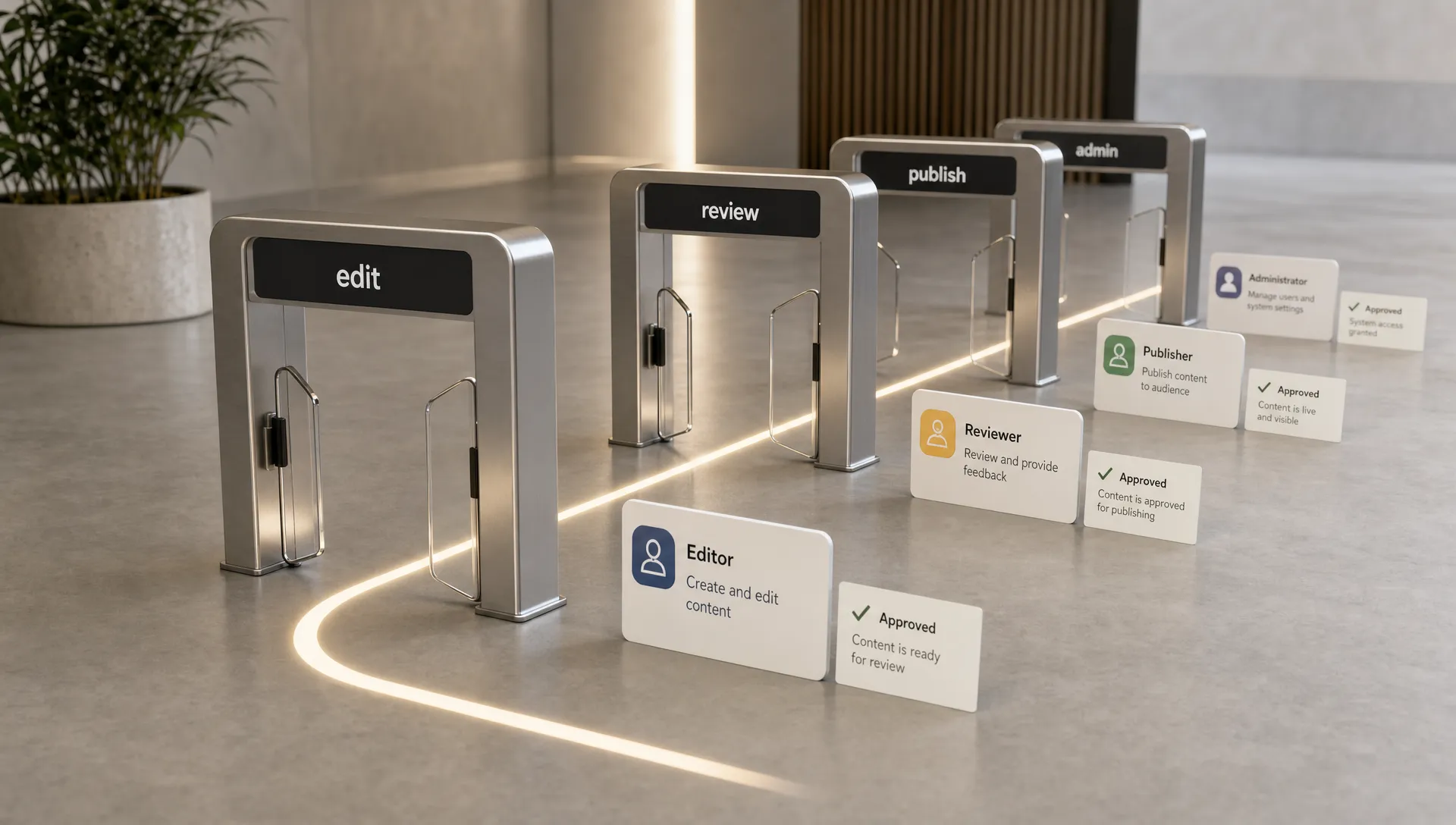
Create three approval lanes. Low-risk edits can be published by the content owner after a checklist. Medium-risk updates need one reviewer, usually the marketing manager or SEO owner. High-risk updates need a short review from the relevant decision maker before publication.
For example, a blog image replacement can move quickly. A change to a paid landing page form should be checked for copy, tracking, mobile layout and thank-you page behavior before it goes live.

The workflow should be simple enough to use every week. If approvals live only in someone’s memory, they will be skipped when the team is busy.
Permissions are only part of the system. The Webflow CMS structure determines what editors can safely change and how easy it is to keep content consistent.
A clean CMS gives marketers clear fields, predictable templates and fewer layout decisions. A weak CMS forces editors to improvise, duplicate pages or ask a developer for small updates that should have been manageable.
For content-heavy sites, collection structure matters as much as access level. Our Webflow CMS guide to collections explains how CMS architecture affects scalability, content operations and maintainability.
A practical rule is simple: editors should choose content, not rebuild design. If an editor needs to manually adjust spacing, rebuild cards or copy hidden layout elements to publish a standard item, the issue is probably the CMS structure rather than the person using it.
Permissions do not exist in a vacuum. What your team can actually configure depends on your Webflow workspace and site plan, so it is worth checking this before designing a permission model around features you may not have.
The table below is a general orientation. Always confirm exact seat counts and role options against your current Webflow pricing and plan details, since Webflow updates its tiers from time to time.
| Workspace tier | Typical seat and role setup | Best fit |
|---|---|---|
| Starter | Limited seats and no custom roles beyond the basic Editor and Designer split. | Solo builders or teams testing Webflow before scaling up. |
| Core | Room for a small team with basic collaborator seats. | Small marketing teams with a handful of contributors. |
| Growth | More seats and stronger collaboration features across pages and CMS content. | Marketing teams that publish frequently across several content types. |
| Enterprise | Advanced governance features, more granular roles and stricter access controls. | Larger organizations that need a strict separation between editing and publishing. |
If your current plan does not support the separation between editing and publishing that your team needs, that is a reason to look at upgrading before adding more manual process on top of a limited setup.
Most permission problems come from unclear ownership rather than platform limits. These are the mistakes we see most often when marketing teams scale their Webflow usage.
| Mistake | Why it is risky | How to fix it |
|---|---|---|
| Giving Designer access to too many people | Untrained users touching structure, responsive behavior, components and SEO settings creates fragile pages. | Reserve Designer access for trained users and give everyone else Editor only access. |
| Letting every editor publish | Editing and publishing are different responsibilities. When everyone can publish, nobody knows what changed or why. | Route publishing through one or two accountable reviewers per content area. |
| Using shared logins | Shared accounts make accountability impossible to trace. | Give every user their own account so changes and access can be tracked and revoked individually. |
| Skipping pre-publish checks | Broken links, missing meta descriptions, oversized images and misconfigured forms are far cheaper to catch before launch than after. | Use a short pre-publish checklist for every page or post. |
| Forgetting freelancers after a project ends | Temporary access left open after a project is a common source of unmanaged risk. | Remove access as soon as the freelancer's scope is delivered. |
| Treating CMS fields as a minor detail | Poorly named fields and inconsistent collection logic cause editing mistakes. | Use clear, marketer friendly field names to reduce training time and review friction. |
None of these mistakes require a complex process to fix. They require ownership, naming discipline and a permission review that happens before the site becomes messy.
Use this checklist when setting up a new Webflow site or reviewing an existing one. It is designed for marketing managers, CMOs and founders who need a clear operating model.
| Checklist item | What it covers |
|---|---|
| Name a site owner | Choose one person accountable for access, publishing rules and escalation when something goes wrong. |
| List every current user | Review everyone with access and confirm they still need it. |
| Map each user to a role | Assign roles such as content editor, marketing manager, SEO reviewer, developer or external contributor. |
| Define what each role can edit | Be specific about pages, CMS collections and the types of updates allowed. |
| Define who can publish | Limit publishing rights to people who understand the review checklist and the business impact of going live. |
| Protect high-impact pages | Require review for the homepage, product pages, pricing pages, paid campaign landing pages, forms, navigation and legal pages. |
| Standardize CMS field names | Use labels that make sense to marketers, not only to whoever built the site. |
| Build a pre-publish checklist | Cover mobile behavior, links, forms, metadata, image size, spelling, tracking and page specific requirements. |
| Document the workflow | Write the rules down in a shared document so new team members do not depend on informal explanations. |
| Schedule permission reviews | Review access after team changes, agency handoffs, major campaigns and at least once a quarter. |
This checklist should take less than an hour to apply on a typical marketing site. The value is not administrative control. The value is fewer avoidable errors and a cleaner path from content request to published page.
Marketing teams should own routine content operations. They should not need a developer for every headline, blog post or landing page edit. That is one of the main reasons to use Webflow in the first place.
A Webflow developer or agency becomes useful when permissions problems are actually architecture problems. If editors keep breaking layouts, duplicating pages, misusing CMS fields or waiting for technical help on basic campaigns, the site may need restructuring.
For teams deciding whether to handle this internally or get specialist help, our guide to the Webflow developer role, skills and pricing explains what a developer should own and what marketing can usually manage without one. If the answer is an agency, our guide on how to choose a Webflow partner agency covers what to check before signing a contract.
A good handoff should leave marketers with confidence. That means clear CMS fields, documented editing rules, sensible permissions and a publishing workflow that does not depend on one person’s memory. Our website maintenance guide covers what to check on a regular basis once permissions and workflow are in place.
What is the Webflow Editor used for? The Webflow Editor is used to update website content without working inside the full Webflow Designer. Marketing teams commonly use it for copy changes, image updates and CMS content such as blog posts or case studies.
Should marketing teams have Webflow Designer access? Only trained users should have Designer access. Most marketing users only need Editor access for routine content updates. Designer access should be limited to people responsible for layout, structure, components and technical setup.
Who should be allowed to publish in Webflow? Publishing access should be limited to people who understand the review checklist and the impact of changes going live. In many teams, that means the marketing manager, website owner, SEO lead or Webflow developer.
How often should Webflow permissions be reviewed? Permissions should be reviewed when someone joins, leaves, changes role or when a major site area is rebuilt. A quarterly review is a practical baseline for most marketing teams.
Can Webflow Editor permissions replace an approval workflow? No. Permissions control access, but they do not replace decision-making. Marketing teams still need clear rules for reviewing high-impact pages, SEO-sensitive changes, forms and campaign pages.
Webflow Editor permissions should give marketers speed without exposing the website to unnecessary risk. The right model is simple: define ownership, separate editing from publishing, protect high-impact pages and review access regularly.
If your current Webflow setup is hard to edit, risky to publish or unclear for your marketing team, the next step is to audit the site structure and permissions before adding more process. BeBranded can help you design, build and optimize a cleaner Webflow operating model through a focused Webflow website project or audit.