Migrating from WordPress to Webflow: the complete 2026 guide

Migrating from WordPress to Webflow: the complete 2026 guide

WordPress to Webflow Migration: The Complete 2026 Guide
Share this Article

Summarize this article with AI

Migrating from WordPress to Webflow means rebuilding your site's design, content, and structure inside Webflow, then setting up 301 redirects from every old URL so you keep your rankings and traffic. Done properly, the switch improves speed, security, and design control without a drop in SEO.

WordPress powers a huge share of the web, but many teams outgrow its plugin stack, maintenance load, and inconsistent performance. Webflow replaces that with a visual builder, managed hosting, and clean code out of the box. This guide walks through why teams migrate, what to plan, the exact migration steps, what actually transfers, and how to protect your search rankings along the way.

Why migrate from WordPress to Webflow

The most common reasons teams leave WordPress are maintenance fatigue, security exposure, and slow performance caused by stacked plugins. Webflow addresses all three by handling hosting, updates, and security natively.

  • Less maintenance: no plugin updates, no PHP version conflicts, no theme breakage after an update.
  • Better security: managed hosting on AWS with automatic SSL and DDoS protection, removing the plugin vulnerabilities that make WordPress a frequent target.
  • Faster load times: clean HTML, CSS, and JavaScript served through a global CDN, without caching plugins to configure.
  • Full design control: a visual canvas that produces production code, so marketing teams can ship pages without a developer.
  • Reliable publishing: staging, one-click publish, and no white-screen surprises.

If you are still weighing the two platforms, our detailed Webflow vs WordPress comparison breaks down ease of use, SEO, e-commerce, and cost side by side.

What to plan before you migrate

A clean migration starts with an inventory, not a rebuild. Before touching Webflow, map three things: your content, your URLs, and your design.

Content

Export every page, post, and media file from WordPress. List your pages and blog posts in a spreadsheet with their titles, URLs, meta descriptions, and publish dates. Decide what to keep, merge, or retire: a migration is the ideal moment to prune thin or outdated content that dilutes your SEO.

SEO and redirects

Crawl your existing site (with a tool like Screaming Frog or your analytics) to capture every indexed URL, your top-performing pages, and your internal links. This list becomes your redirect map. Note your current title tags, meta descriptions, structured data, and canonical URLs so nothing is lost in the rebuild.

Design

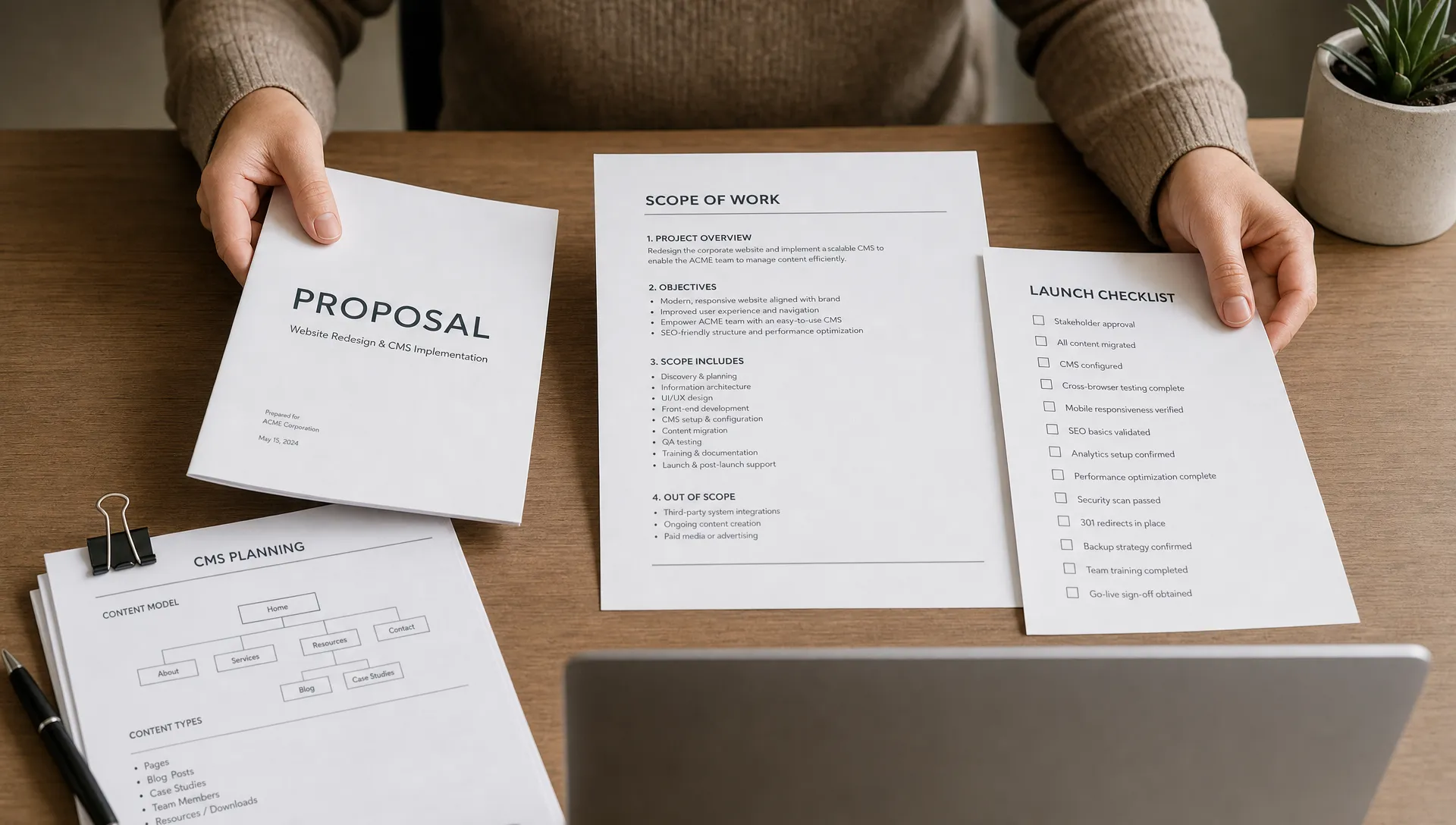
Decide whether you are migrating like-for-like or redesigning at the same time. Many teams treat a WordPress to Webflow move as a full website redesign, which is efficient since you are rebuilding anyway. If you go that route, our website redesign guide covers scope, wireframes, and launch planning.

What transfers and what does not

One of the biggest sources of surprise in a migration is assuming everything carries over automatically. It does not. Your content and SEO signals move across, but WordPress's plugin-driven functionality has to be rebuilt with Webflow's native features or integrations. Knowing this upfront keeps the project on schedule.

ElementTransfers?Notes
Pages and postsYesRebuilt, or imported into the CMS via CSV
Images and mediaYesRe-uploaded; image URLs need redirects too
URL structureYes, with 301sKeep slugs where possible to limit redirects
SEO metadataYesTitles, descriptions, canonical and schema carried over
Plugins and PHP featuresNoReplaced by native features or third-party integrations
FormsRebuiltRecreated with native Webflow forms
CommentsNot nativelyUse a third-party tool if you need them

The step-by-step migration process

Once your inventory is ready, the build follows a predictable sequence.

  • 1. Set up the Webflow project: create the site, define your style guide (typography, colors, spacing), and build reusable components for headers, footers, and cards.
  • 2. Rebuild the page structure: recreate your core pages and templates in Webflow, matching your sitemap.
  • 3. Model your CMS: for blogs, case studies, or products, build Webflow CMS collections with the right fields, then import your content via CSV.
  • 4. Migrate content: move text and media into the new pages and CMS items, keeping headings, links, and alt text intact.
  • 5. Rebuild on-page SEO: set title tags, meta descriptions, Open Graph data, and structured data for every page.
  • 6. Prepare your redirects: build the 301 redirect map from old WordPress URLs to their new Webflow equivalents.
  • 7. Test on staging: check responsiveness, forms, links, and performance before going live.
  • 8. Point the domain and launch: update DNS, publish, then apply redirects and resubmit your sitemap.

How to migrate without losing SEO

The single most important step in any migration is 301 redirects: every old WordPress URL must permanently redirect to its matching Webflow page. Skip this and you lose your rankings, backlinks, and traffic overnight.

To preserve your SEO through the switch:

  • Map URL to URL: redirect each old path to the closest new equivalent, not to the homepage. Webflow supports 301 redirects in the site settings.
  • Keep slugs where you can: matching your existing URL structure reduces the number of redirects and the risk of errors.
  • Preserve metadata: carry over title tags, meta descriptions, and structured data so pages keep their relevance signals.
  • Rebuild internal links: update links to point at the new URLs rather than chaining through redirects.
  • Resubmit your sitemap: generate the new Webflow sitemap and submit it in Google Search Console right after launch.
  • Monitor for 404s: watch Search Console and your analytics for the first weeks and fix any broken paths quickly.

WordPress URLs often follow patterns that do not exist in Webflow, so your redirect map turns each old shape into a clean new one. A few common examples:

Old WordPress URLNew Webflow URLRedirect
/2024/05/post-name//blog/post-name301
/?p=123/blog/post-name301
/category/news//blog301
/wp-content/uploads/photo.jpg/assets/photo.jpg301

For the full checklist of technical SEO settings in Webflow, see our complete Webflow SEO guide.

Common pitfalls to avoid

  • Redirecting everything to the homepage: this wastes link equity and frustrates users. Always map URL to URL.
  • Forgetting media and image URLs: images ranking in Google Images have their own URLs that also need redirects.
  • Launching without a staging review: broken forms and missing meta tags are far cheaper to fix before launch.
  • Ignoring your top pages: prioritize the URLs that drive the most traffic and backlinks so they migrate flawlessly.
  • Dropping structured data: lost schema means lost rich results.
  • No post-launch monitoring: rankings can wobble briefly, and watching the data lets you react fast.

When to hire an agency

Hire a Webflow agency when your site is large, revenue-critical, or ranks well and you cannot afford a traffic dip. The redirect mapping, CMS modeling, and design rebuild reward experience, and a botched migration is expensive to reverse.

A small brochure site can be migrated in-house over a few days. A content-heavy site with hundreds of posts, strong rankings, and custom functionality is where professional help pays for itself. For a numbers view of what the switch costs over time, see our breakdown of the real cost of Webflow vs WordPress over 24 months.

At BeBranded, we handle WordPress to Webflow migrations end to end, from redirect strategy to a pixel-perfect rebuild, so you keep your rankings and gain a faster, easier site. Explore our Webflow agency services or tell us about your project.


Related Guide
Get the Guide
Migrating from WordPress to Webflow: the complete 2026 guide

FAQ

Not if it is done correctly. The key is setting up 301 redirects from every old WordPress URL to its new Webflow page and preserving your title tags, meta descriptions, and structured data. Sites that map redirects carefully and monitor Search Console after launch typically keep their rankings, and often improve them thanks to Webflow's faster load times.
A small site of a few pages can take a few days, while a content-heavy site with hundreds of posts and a full redesign usually takes three to six weeks. The timeline depends on the number of URLs, the complexity of your CMS, and whether you redesign at the same time. Planning the content inventory and redirect map upfront is what keeps the project on schedule.
Yes. You export your posts and pages from WordPress and import them into Webflow CMS collections, usually via CSV. Text, images, headings, and links all carry over. A migration is also a good moment to prune outdated content, so you rebuild only what still earns traffic.
Costs vary with the size of the site and whether you redesign. A simple migration can be a few hundred euros of effort, while a large site with a new design and careful SEO migration runs into several thousand. The main cost drivers are the number of pages, CMS complexity, and the redirect and SEO work needed to protect your rankings.
They can, but they do not have to. You keep matching slugs wherever possible, and for any URL that must change you add a 301 redirect from the old path to the new one. That sends visitors and search engines to the right page, so your rankings and backlinks carry over.
No, but it is a common and efficient choice. Since the site is rebuilt in Webflow either way, many teams modernise the design at the same time. You can also migrate like-for-like first and redesign later if you prefer to reduce risk and go live sooner.

Try our last tools to upgrade your website, for free

BeBranded Contents: find your next tools to optimize your Webflow website.

Ready to boost your conversions?

Our team is here to understand your needs & work with you to create your next projects.
Get news, infos and resources.
Actionable tips delivered straight to your inbox.
Thank you! Your submission has been received!
Oops! Something went wrong while submitting the form.