

Automatically updating the footer date with JavaScript in Webflow

How to automatically update your website's footer copyright year with a short JavaScript snippet in Webflow, so it stays current without manual edits.
BeBranded logo
AI & automation · 3 min read · Published Mar 3, 2025 · Updated Nov 12, 2026
Automatically updating the footer copyright date with JavaScript in Webflow

Share this article

Summarize this article with AI

Many websites still display outdated copyright years, which can make a site seem neglected or abandoned. While manually updating the date every year is possible, it is often overlooked. Automating this small but essential task ensures your website maintains a professional and up-to-date appearance.

In this guide, we will show you how to dynamically update your website's footer copyright date using JavaScript.

Maintains a professional image

An outdated footer can make visitors question whether your website is actively maintained. Keeping it current reassures users of your site's reliability. It is exactly the kind of small detail that a good website maintenance routine takes care of.

Eliminates unnecessary manual work

If you manage multiple websites, updating each footer manually every year becomes tedious. Automating this process saves time and effort.

Prevents oversights

It's easy to forget to update the date. By automating it, you eliminate the risk of displaying an outdated year.

Step 1: prepare your HTML

Ensure that your HTML footer includes a span element with the class current-year:

Step 1: prepare your HTML

Step 2: add JavaScript code

Insert the following jQuery script before the closing </body> tag:

<script>
$(function() {
  $('.current-year').text(new Date().getFullYear());
});
</script>

Step 3: explanation of the code

  1. $(function() { ... }): ensures the script runs once the page is fully loaded.
  2. new Date().getFullYear(): retrieves the current year dynamically.
  3. $('.current-year').text(...): updates the text inside elements with the class current-year to display the current year.

Testing your implementation

Once the script is added, refresh your page to verify that the footer displays the correct year. This solution is simple, effective, and requires minimal setup.

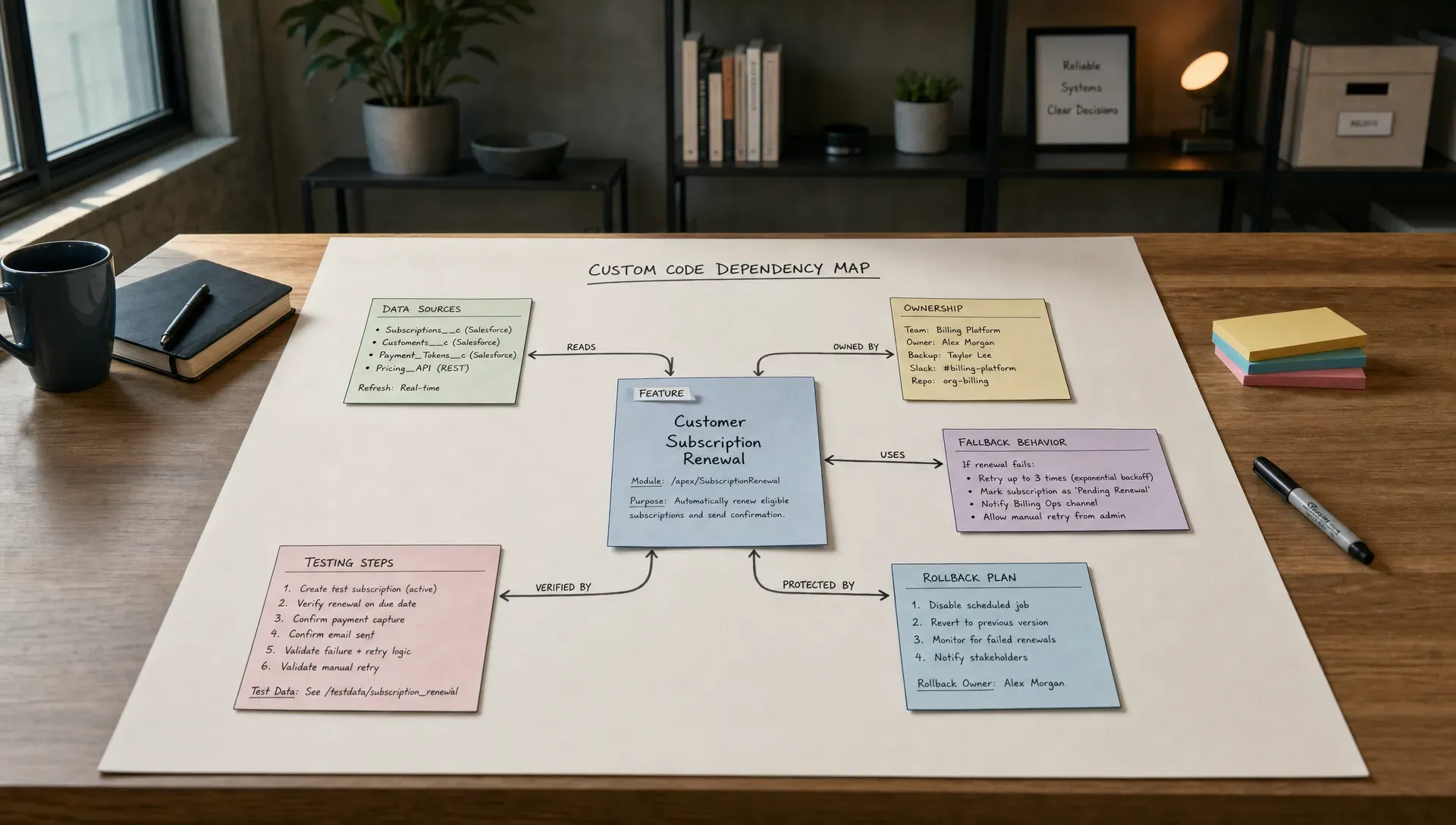
Keep snippets like this one documented in a single place: our guide on scoping custom Webflow code explains how to avoid maintenance debt. And if your site is bilingual, the same approach lets you translate a post date into French in Webflow.

Conclusion

Automating the copyright date update is a small yet impactful enhancement that ensures your website remains up-to-date with minimal effort. By implementing this jQuery solution, you enhance your site's professionalism, save time, and eliminate manual updates.

Just add the class current-year to a text block, and the script will handle the rest automatically! For more small custom-code upgrades like this one, see our tutorial on adding a custom video player to Webflow.

Small fixes like this one are part of what our website maintenance and growth service takes care of, so your site never looks abandoned.

FAQ

Questions about this topic.

Another question?

Write to us
Why should I automate the footer date update?
Automating the footer date ensures that your website always displays the correct year without manual updates. This helps maintain a professional image and avoids giving visitors the impression that your site is outdated.
Do I need jQuery for this script to work?
Yes, the provided script uses jQuery. If your website does not already include jQuery, you may need to add it. Alternatively, you can use a pure JavaScript version if you prefer not to rely on jQuery.
Can I use this script on any website?
Yes, this script works on any website as long as jQuery is included. Simply add the script and assign the class current-year to the HTML element where you want the year to appear.
What happens if I don’t update my footer date manually?
An outdated footer can make your site look abandoned, reducing trust and credibility with visitors. Automating the update prevents this issue.
Where should I place the script on my website?
The script should be placed just before the closing </body> tag to ensure it runs after the page has loaded.
Can I use this script for multiple elements on the same page?
Yes, the script updates all elements with the class current-year, so you can use it in multiple places on your website.

Keep reading

Keep reading, more from the blog.

How to scope custom Webflow code without creating maintenance debt
Webflow

How to scope custom Webflow code without creating maintenance debt

Learn how to scope Webflow custom code, avoid maintenance debt, and define ownership, testing, and documentation before launch.

Read the article
How to translate a post date into French in Webflow?
Webflow

How to translate a post date into French in Webflow?

Automatically translate Webflow CMS dates into French using JavaScript for a seamless, professional and localized user experience.

Read the article
Webflow AI Site Builder: a game changer or just a starting point?
AI & automation

Webflow AI Site Builder: a game changer or just a starting point?

Webflow's AI Site Builder creates a multi-page site from a prompt in minutes. What it does well, its limits, and why it remains a starting point.

Read the article

Tools

Webflow

Let’s talk

Tell us what you want to build.

Thirty minutes with the people who will work on your project. You leave with a clear view of the scope, the timeline and the next steps.

What happens next

  1. 1A 30-minute callWe listen to your goals, your constraints and your context.
  2. 2A clear scopeWe map what is worth doing first, and what it takes.
  3. 3A costed proposalYou decide, with no commitment and no sales pitch.